
Translation Portal
Translation Portal was created to provide end-users with a web tool to try different MT engines without programming. Translation Portal can also be embedded in internal portals.
Select the desired language pair for translation and insert text or drag your file. Smart routing mode will be applied automatically.
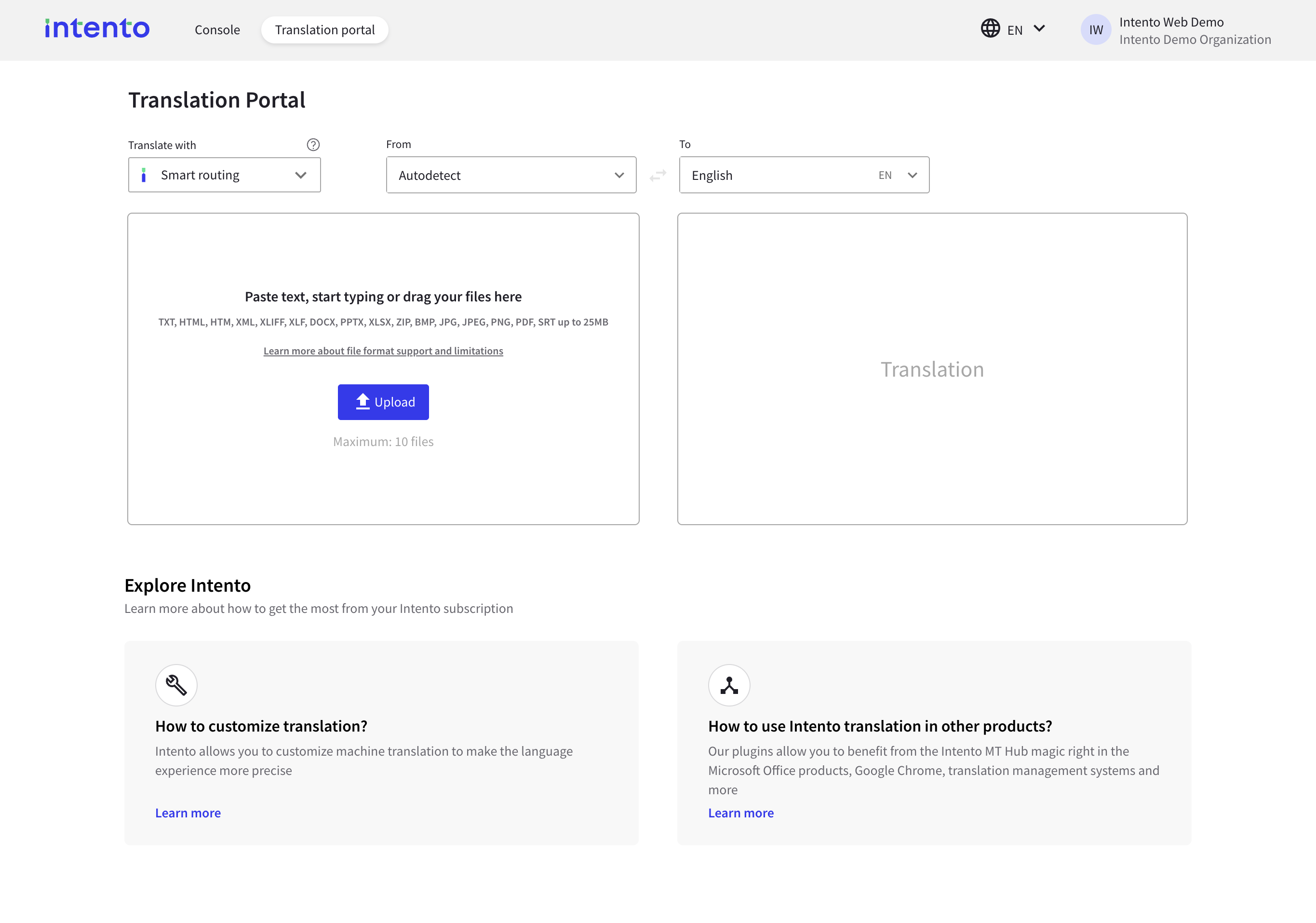
In Smart routing mode, we route your requests to one of the 9 top-performing MT systems from the most recent report, with several important features:
The requests are routed only to cost-effective systems (<$25 per 1M characters). Different MT engines can command much higher prices.
We route only to systems with full data protection and confidentiality.
We route only to stable and reliable commercial systems.
In some cases, we have identified that ranking on private data differs from ranking for public WMT datasets in the report. We use those insights.
For language pairs that are not in the report, we extrapolate.
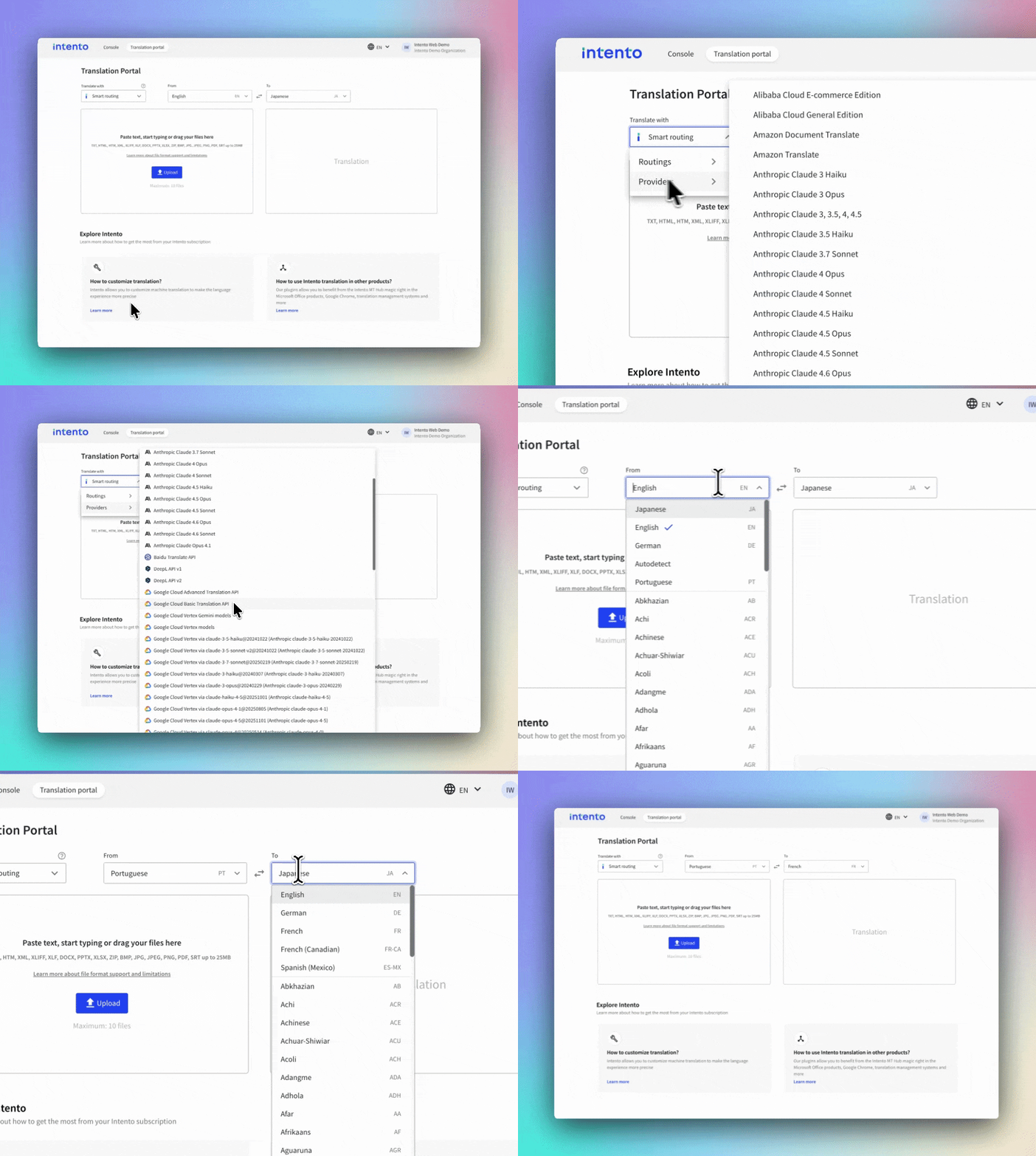
If you want to check a specific engine, you can choose it from the drop-down list. The list of available engines will automatically update according to the selected language pair:
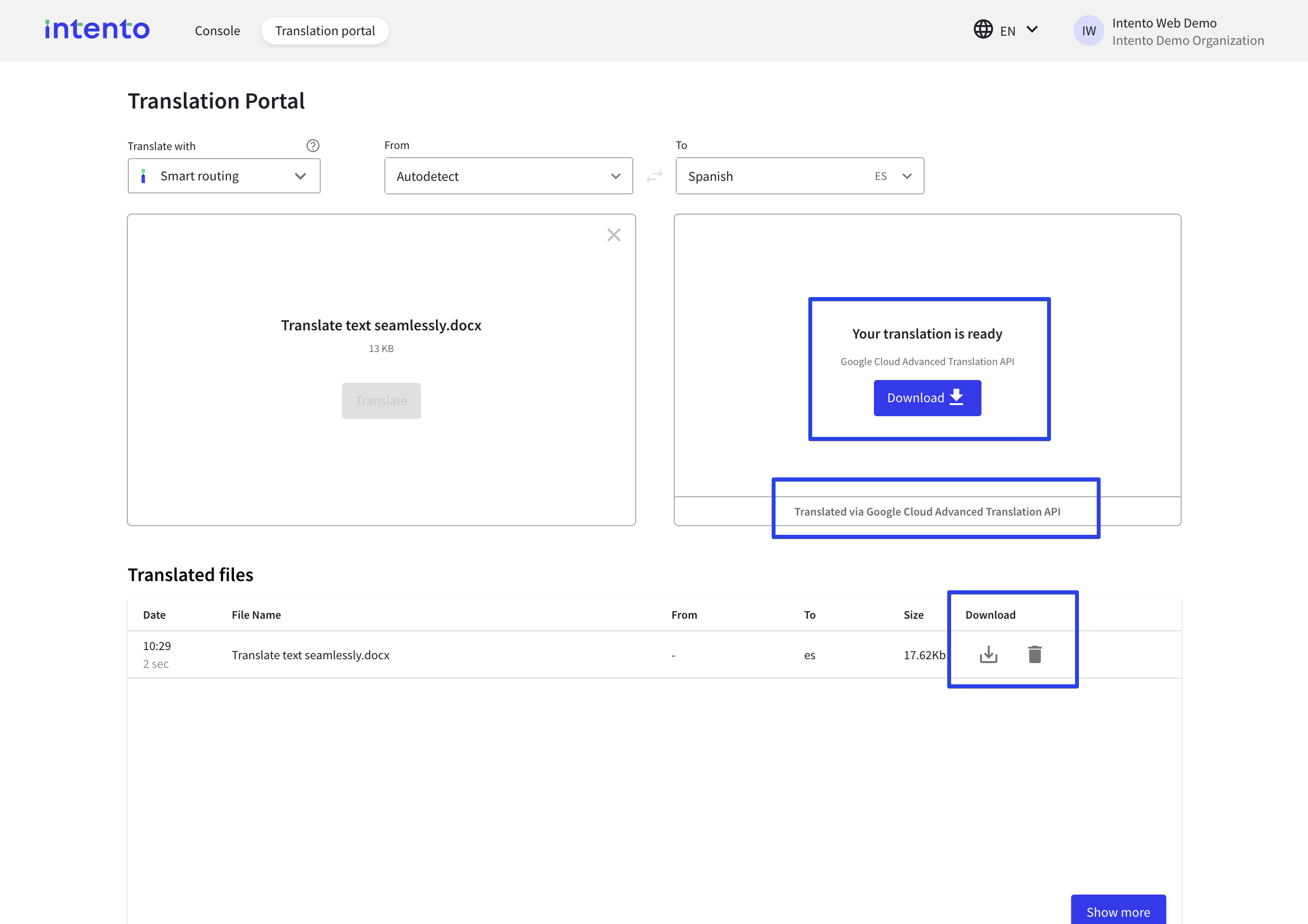
You can upload a file in TXT, HTML, XML, DOCX, XLSX, PPTX format. Once the file is processed, you will be able to download its translated version in the Translation section. You can also see it on the Translated files list below:
Format-Specific Limitations
The Translation Portal supports many formats for translation, but some advanced or format-specific features may not be fully preserved. Below are the known limitations, their impact, and recommended actions.
Microsoft Word (.docx)
Tracked changes are not supported.
→ Recommendation: Accept or reject all tracked changes before uploading.
📘 Track changes in Word.
Field codes (e.g., table of contents, cross-references) may not update automatically.
→ Recommendation: After translation, refresh fields/TOC in Word.
📘 Update a table of contents and Insert a table of contents.
Text in headers/footers and text baked into images are not translated.
→ Recommendation: Move required text out of headers/footers or translate it manually; translate any text inside images separately.
📘 Insert a header or footer and Edit your existing headers and footers.
SmartArt graphics are not processed (text remains untranslated).
→ Recommendation: Copy SmartArt text to normal shapes/body text, translate, then rebuild SmartArt if needed.
📘 Create a SmartArt graphic from scratch.
Text inside text boxes/drawings may shift after translation.
→ Recommendation: Review and adjust text boxes/shapes post-translation.
📘 Add, copy, or delete a text box.
Hyperlinks are preserved but not localized/retargeted automatically.
→ Recommendation: Manually verify and update link targets after translation.
📘 Create or edit a hyperlink.
Navigation anchors/bookmarks are unsupported.
→ Recommendation: Remove bookmarks (or convert to plain text) before uploading.
📘 Add or delete bookmarks in a Word document.
Hidden text is skipped by the translation engine.
→ Recommendation: Unhide any text you want translated (File → Options → Display → “Hidden text”).
📘 Word Options — Display (Hidden text setting) and guidance on showing formatting marks: Show or hide formatting marks.
Microsoft Excel (.xlsx)
Merged cells are not supported.
→ Recommendation: Unmerge all cells before uploading.
📘 Merge and unmerge cells in Excel.
Worksheet (sheet) names are not translated.
→ Recommendation: Translate names manually and rename sheets after translation.
📘 Rename a worksheet.
Files containing emojis may not process correctly.
→ Recommendation: Remove emojis or replace with plain text before uploading.
📘 Use emojis in Word for the web (emoji behavior in Office) and related reference: Autocorrect emojis in documents and email.
Protected sheets/locked ranges cannot be translated.
→ Recommendation: Unprotect sheets and unlock ranges before uploading.
📘 Protect a worksheet and Lock or unlock specific areas of a protected worksheet.
Text in shapes and Map charts is not processed.
→ Recommendation: Copy that text into cells for translation; reapply to shapes/maps afterward.
📘 Create a Map chart in Excel and Format a Map Chart.
Microsoft PowerPoint (.pptx)
RTL (right-to-left) alignment is not applied automatically.
→ Recommendation: After translating into RTL, manually set text alignment/direction on each slide.
📘 Change text alignment, indentation, and spacing in PowerPoint and Set text direction in a shape or text box.
Captions baked into images are not translated.
→ Recommendation: Use editable text boxes for image captions; translate those text boxes.
📘 Insert a caption for a picture (explains manual text boxes for PowerPoint).
Now supported (since January 2026)
The following PowerPoint features, previously unsupported, are now fully supported in translation:
Embedded charts – chart titles, labels, and legends are translated automatically.
SmartArt graphics – text inside SmartArt elements is translated.
Hyperlinks – internal and external hyperlinks are preserved during translation.
Alternative text (Alt Text) – alt text for images and objects is translated and remains correctly linked.
PDF Files (.pdf)
Password-protected PDFs cannot be processed.
→ Recommendation: Remove password protection or export an unprotected copy before uploading.
📘 Save or convert to PDF in Office desktop apps and (for orgs using MIP) Create protected PDFs from Office files.