
Translate Emails with Intento Language Hub for Genesys Cloud
This article is for support agents who use Intento Language Hub in Genesys Cloud email. You read the customer email in your working language and reply in the customer language, without leaving the conversation.
Translate an Email
An inbound email is routed to you in Genesys Cloud.
Open the Intento app next to the email conversation. The email thread appears in your working language, subject line included.
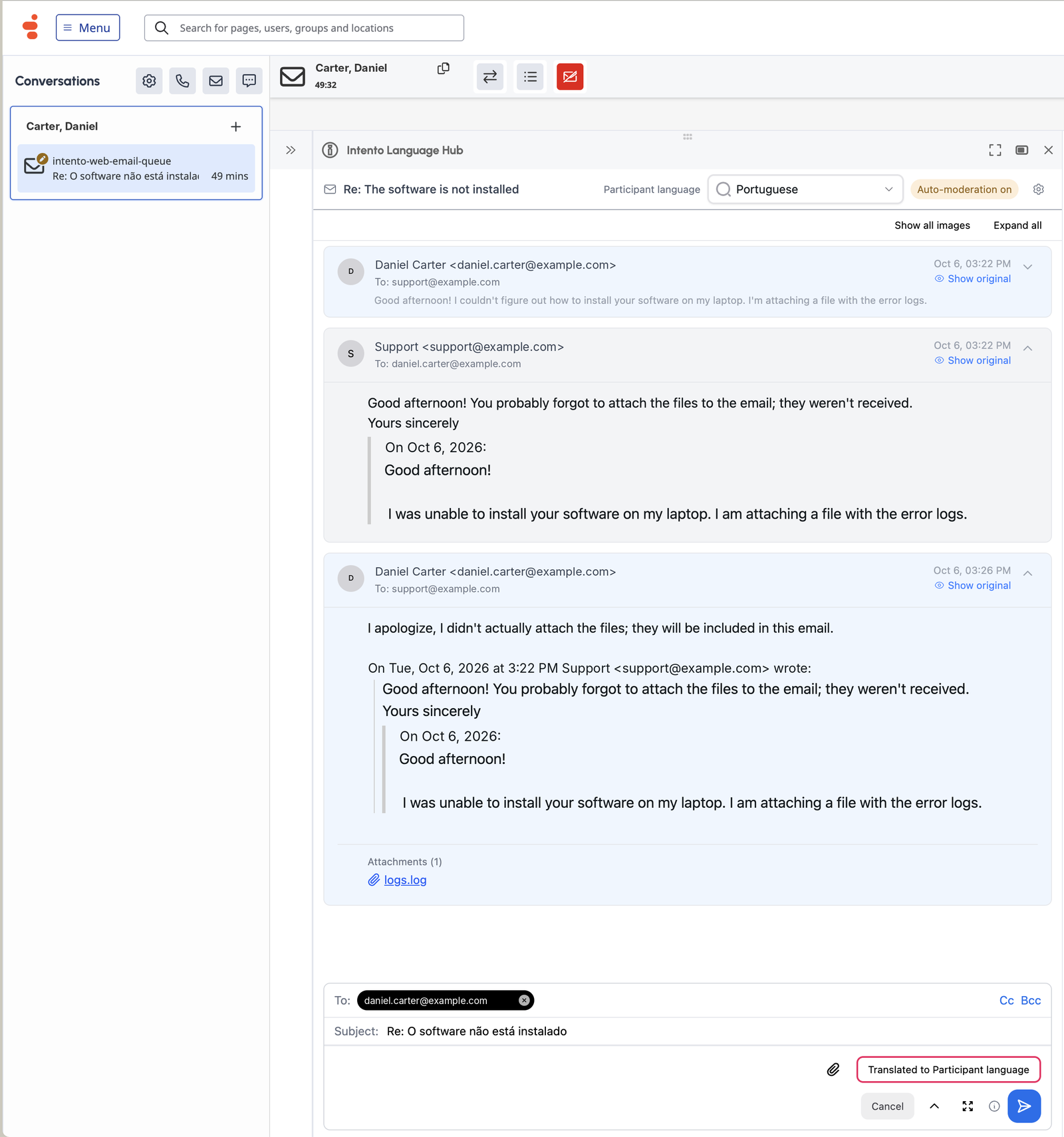
Check the Participant language selector in the header and confirm the customer language. The selector is red when no language is set, amber when the app detected a language you haven't confirmed yet, and green once the language is confirmed. You can't send the reply until it's green.
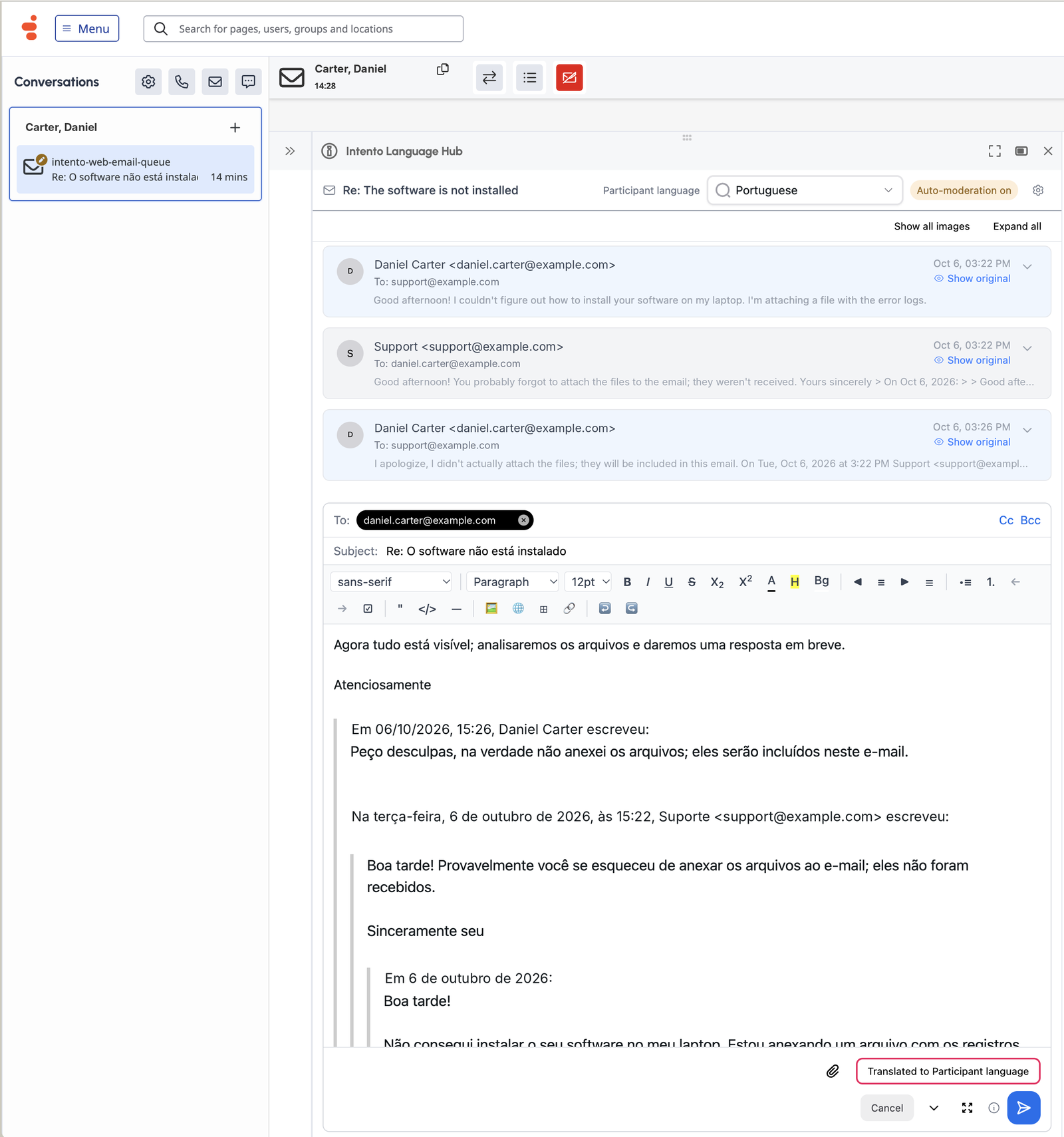
Write your reply in your working language in the editor inside the app.
Click Translate. The reply is translated into the participant language, and the button changes to Translated to Participant language. Review the translation and send it from the app.
You can also reply from the Genesys Cloud email panel as usual.
Email Tools in the App
The editor has formatting tools such as fonts, bold, italic, underline, colors, alignment, lists, tables, links, and inline images, plus attachments, To, Cc, Bcc, and the subject.
Show original on each message shows the text as the customer wrote it.
Expand all opens every message in the thread, and Show all images loads the inline images.
Download all saves the attachments of a message as a ZIP file when it has two or more.
Reply and Forward work from the app.
Drafts save automatically.
How to check it works:
Inbound emails show their translated source in the app. Test with messages that contain images, URLs, and rich text.
The Participant language selector turns green after you confirm the language, and Send becomes available.
Replies sent from the app reach the customer in their language, with formatting kept. Markup handling depends on the translation provider, so test it end to end with the provider you use.
With content safety on, flags appear on the email body and the subject.