
Check Replies for Offensive Content in Genesys Cloud
Content safety in Intento Language Hub for Genesys Cloud checks replies from support agents for offensive and harmful content before they reach the customer. The first sections are for support agents, the last ones for administrators.
How the Check Works
Content safety checks messages from support agents, in chat and email, for hate, violence, sexual, and self-harm content, and for words on your custom blocklist, before the message reaches the customer. A blocklist is a list of words and phrases your company doesn't want sent to customers. The check runs on Azure AI Content Safety through the Intento API.
Messages still go out during an outage. If the content-safety service is unavailable, messages send without a check. An outage never blocks customer communication.
Support agents decide. After reviewing flagged content, a support agent can always choose Send Anyway.
Highlighting per segment. Flagged content is highlighted segment by segment, colored by severity.
Part of the translation request. The automatic check on send runs in the same Intento API call that translates the message. The Check for Profanity button sends a separate request to Intento. Neither adds Genesys Cloud API calls (see Troubleshooting and FAQ: Intento Language Hub for Genesys Cloud).
What Support Agents See
When the automatic check is on, an Auto-moderation on badge appears next to the gear icon in the app.
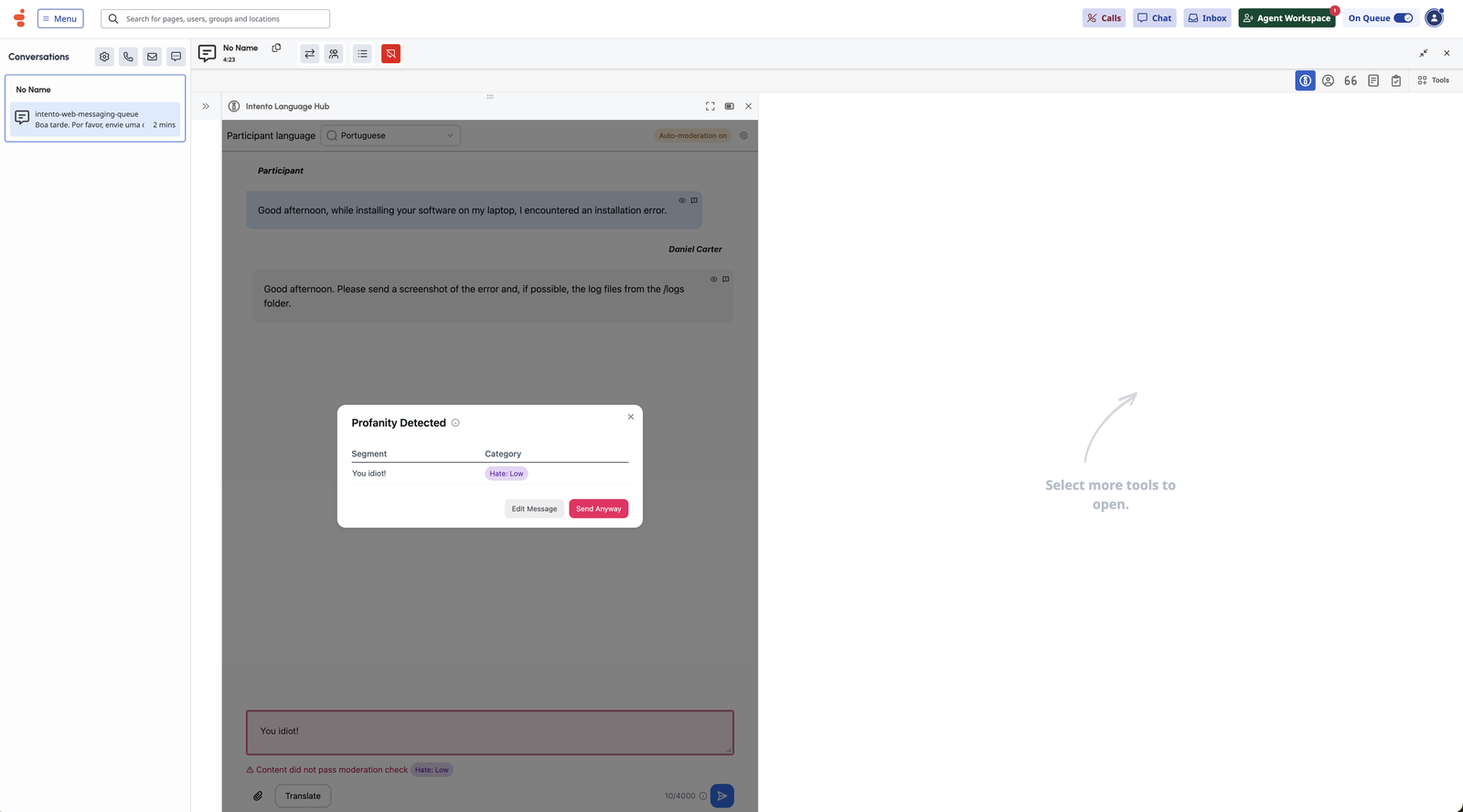
Chat, manual check (automatic check off for chat). A Check for Profanity button appears next to the chat input. A clean message shows "No issues found." A flagged message gets a red border and the warning "Content did not pass moderation check", with the categories it found.
Chat, automatic check (automatic check on for chat). When you click Send:
A clean message is sent immediately.
A flagged message opens the Profanity Detected window, which lists each flagged segment with its category and severity. Choose Edit Message or Send Anyway. Despite its title, the window covers all categories, not only profanity.
Email works the same way as chat, with these differences:
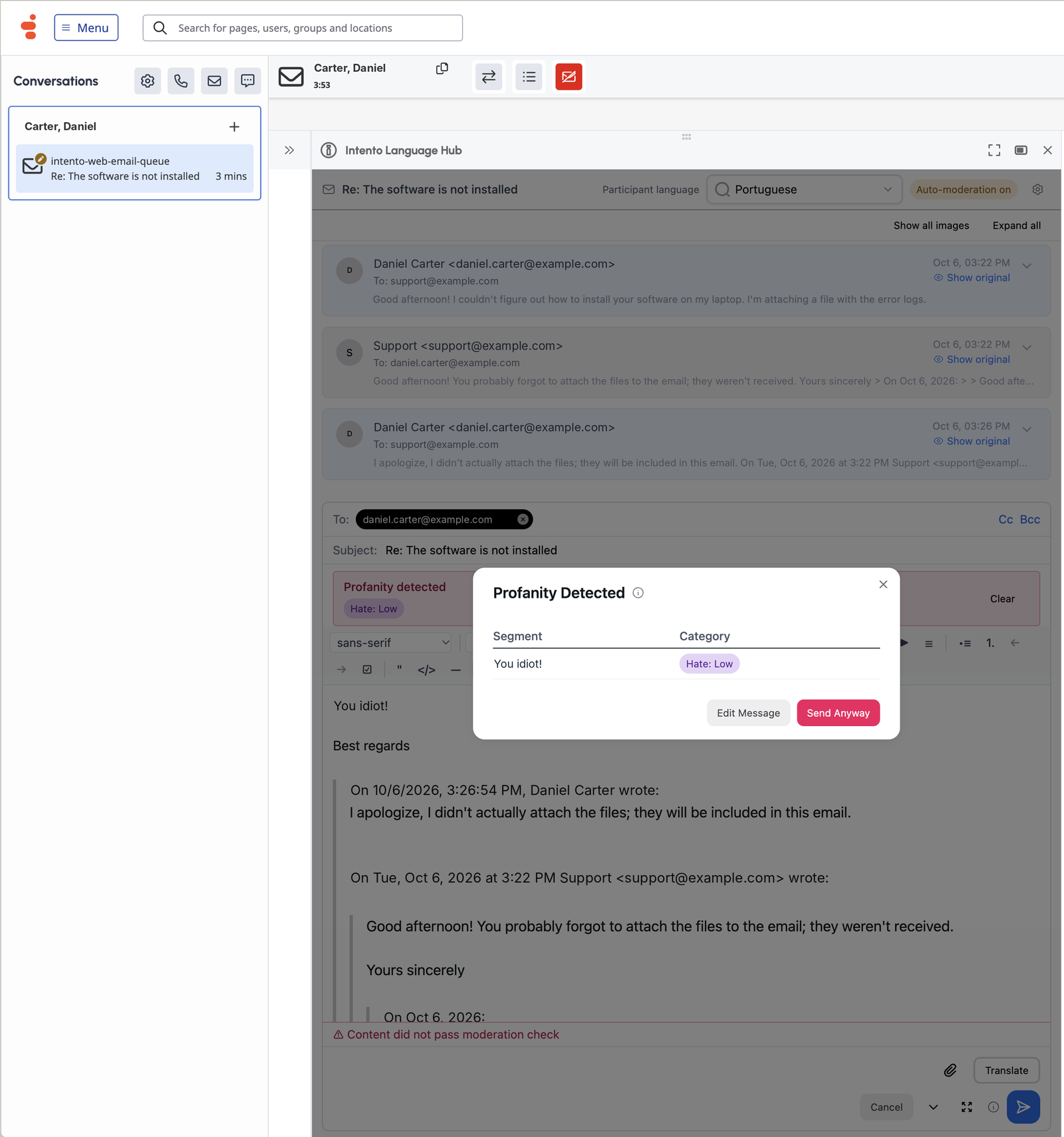
The subject is checked too. A flagged subject appears as "Subject: …" in the warning and the window.
The HTML body is split into text segments, and each segment is checked on its own.
Segments are highlighted in the editor by severity: red for high, orange for medium, amber for low, and green for checked segments with no flag.
A banner above the editor lists the flagged categories as purple chips and has a Clear button.
The warning under the editor reads "Content did not pass moderation check", as in chat.
Severity Levels and Categories
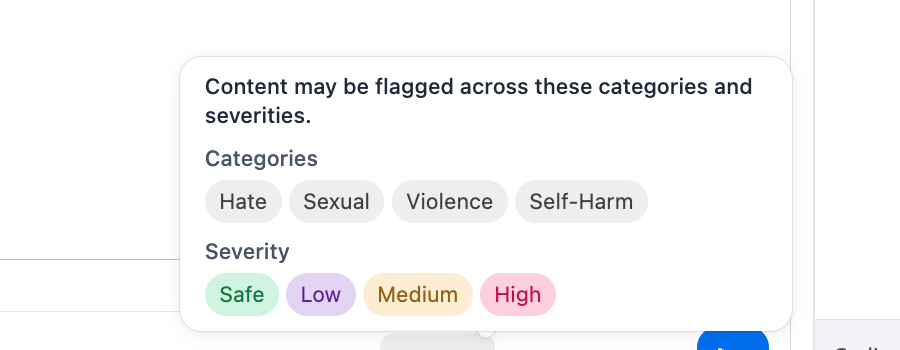
Severity levels
| Label | Color | Meaning |
|---|---|---|
| Safe | Green | No issue |
| Low | Amber | Minor concern |
| Medium | Orange | Moderate concern |
| High | Red | Severe violation |
Categories
Hate: hate speech and discrimination
Violence: violent content
Sexual: sexually explicit content
Self-Harm: self-harm content
Custom blocklist matches: words and phrases from the custom Azure AI Content Safety blocklist set up for your organization. Matches appear as a category in the same interface.
Administer Content Safety
Intento Support sets the initial content-safety settings at installation, from the decisions you sent in Install and Configure Intento Language Hub for Genesys Cloud: whether content safety is on, whether the automatic check starts on or off for chat and for email, and which Genesys Cloud roles may change the settings.
After that, administrators with the right Genesys Cloud role change the automatic-check settings from the gear icon in the app:
| Setting | Effect |
|---|---|
| Auto-check chat messages | Checks chat messages automatically before send. |
| Auto-check email messages | Checks emails automatically before send. |
Changes apply immediately to all support agents in the organization.
Who can change the settings
Every support agent sees content-safety results when content safety is on.
Only users whose Genesys Cloud roles match the Moderation Admin Roles list see the gear icon. Role names are matched one by one and are not case-sensitive.
To change the Moderation Admin Roles list, contact Intento Support.
Recommendations for Administrators
Turn on the automatic check for chat when your policies call for blocking unsafe content by default. Support agents keep the option to send anyway.
Turn on the automatic check for email when replies are long. Highlighting per segment helps more than a single check at the end.
Set the Moderation Admin Roles list, even if you don't plan to delegate yet. An empty list locks the settings in the app for everyone.