
Translate Chats with Intento Language Hub for Genesys Cloud
This article is for support agents who use Intento Language Hub in Genesys Cloud chat. Customer messages appear in your working language, and your replies reach the customer in their language.
Translate a Chat
Set your status to On Queue in Genesys Cloud.
When a customer starts a chat from a page with your messenger deployment, it lands in your workspace. The Intento app opens next to the conversation. You read and write in your language, and the customer sees theirs.
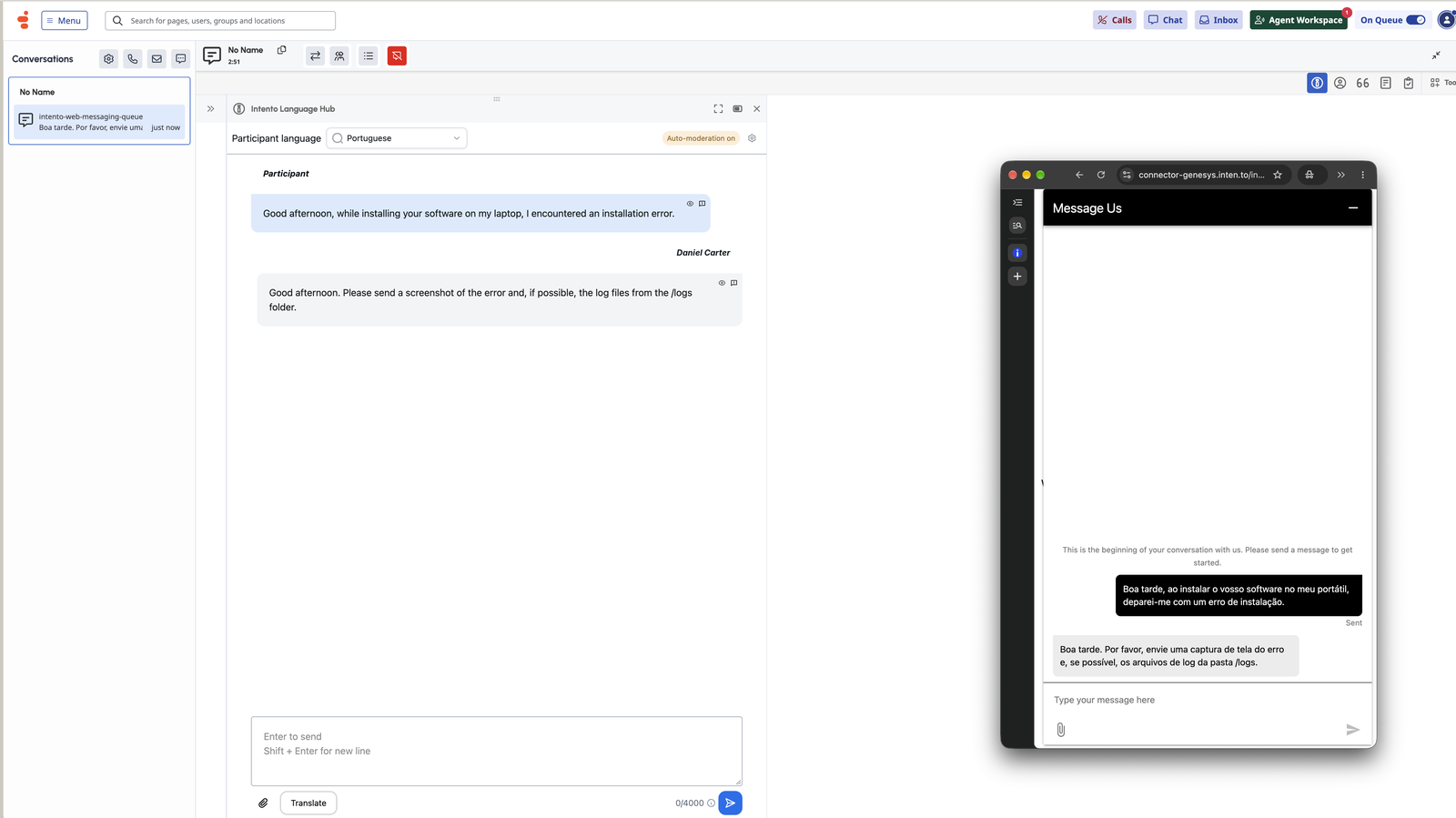
Customer messages appear translated into your working language. Replies are translated when you send them. To see and edit the translation first, click Translate. The button changes to Translated to Participant language, and you can still edit the text before you send it.
The app takes the customer language from a conversation attribute your administrator sets up, and the country code of the conversation gives the regional variant, such as FR-CA or EN-GB, following the locale mappings in your Product Configuration. When neither is set, the app detects the language from the messages. To change it, pick another language in the Participant language selector at the top of the app.
See the Original and Send Feedback
Click the eye icon on a customer message to see the original text.
Select translated text to show a feedback button, which sends that segment to Intento. Feedback is optional.
How to check it works:
Set your status to On Queue and have a test customer start a chat in another language.
Open the Intento app.
The customer message arrives translated into your working language.
Your reply reaches the customer in their language.
Locale variants such as
FR-CAandEN-GBare respected.The Intento sign-in pop-up appears only on the first conversation.
To check replies for offensive content before they are sent, see Check Replies for Offensive Content in Genesys Cloud.