How to set up Intento as the MT engine in MateCat
In this article group
- How to connect Intento to Phrase TMS
- How to install and configure Intento plugin for Crowdin
- How to optimize text for Machine Translation
- How to set up event tracking in Google Analytics
- How to set up Intento connector for Lingotek
- How to set up Intento plugin for Wordfast Anywhere
- Intento Integration Guidelines for TMS Scenarios
- Intento Translate MCP: User Guide
Set up Intento as the MT Engine in MateCat in just a few easy steps.
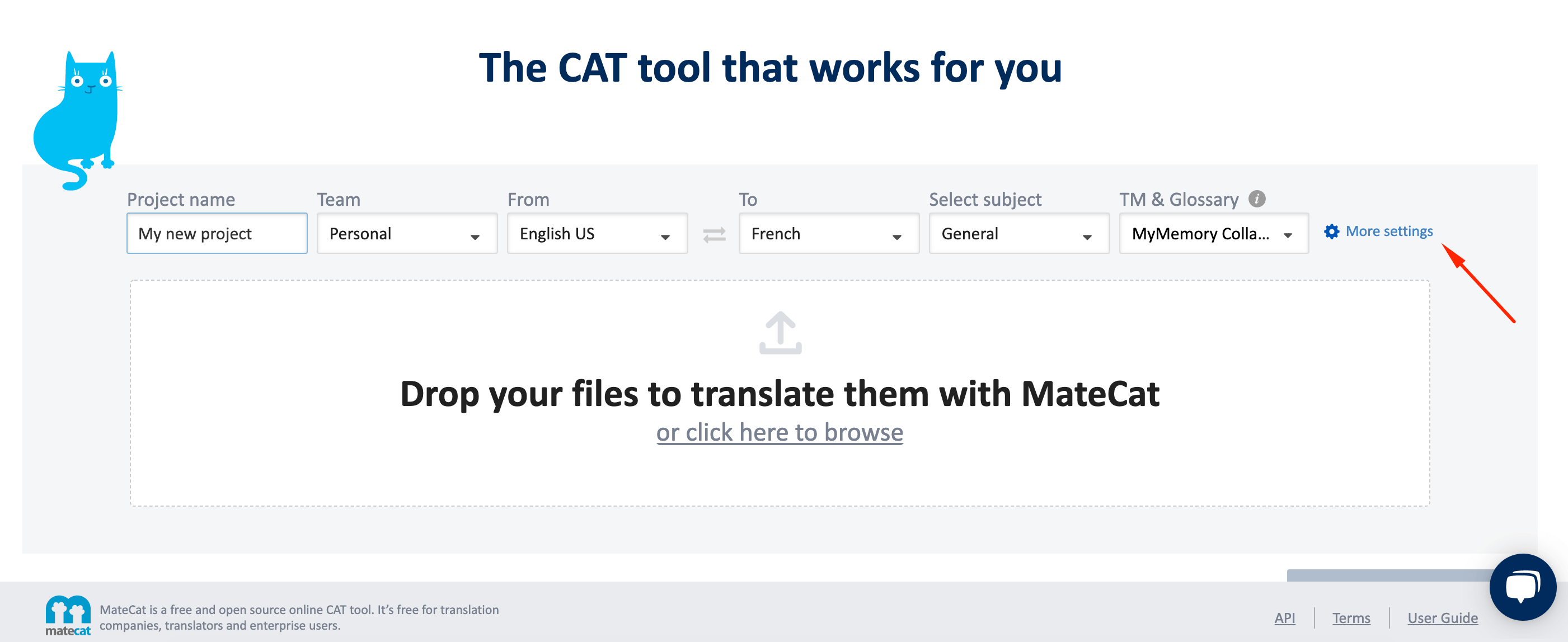
In MateCate, start by clicking More settings:
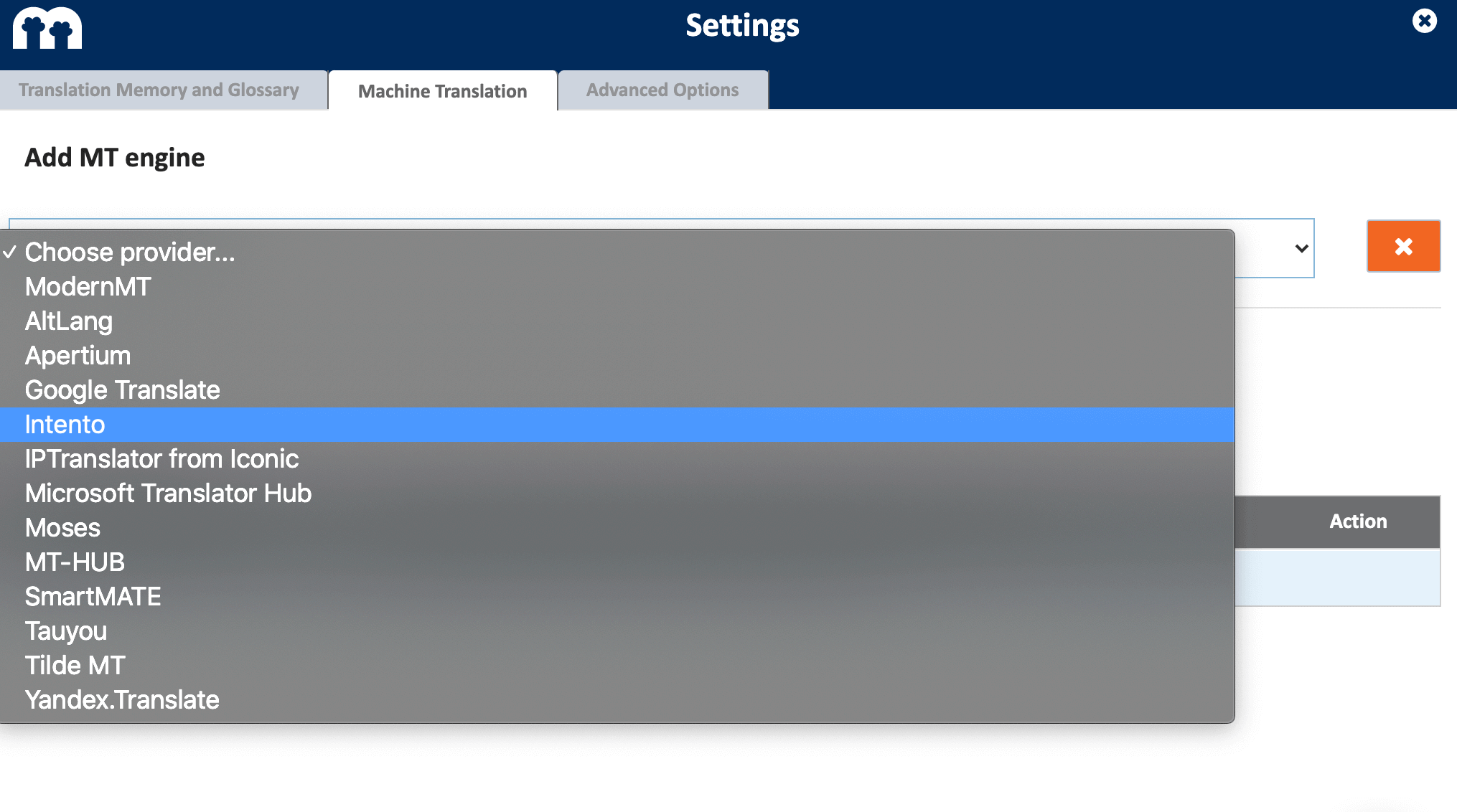
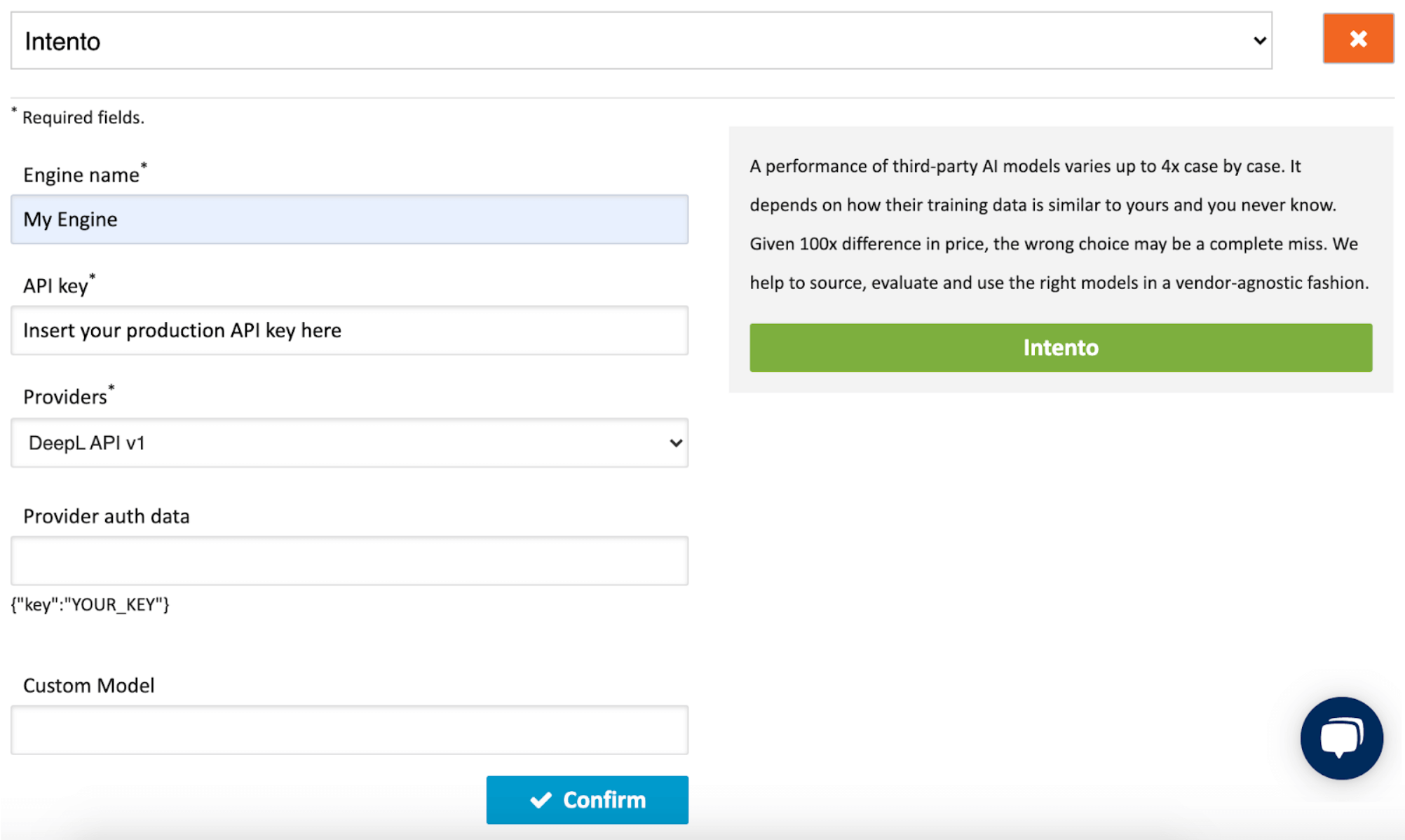
Navigate to the Machine Translation tab and select Intento from the dropdown list:
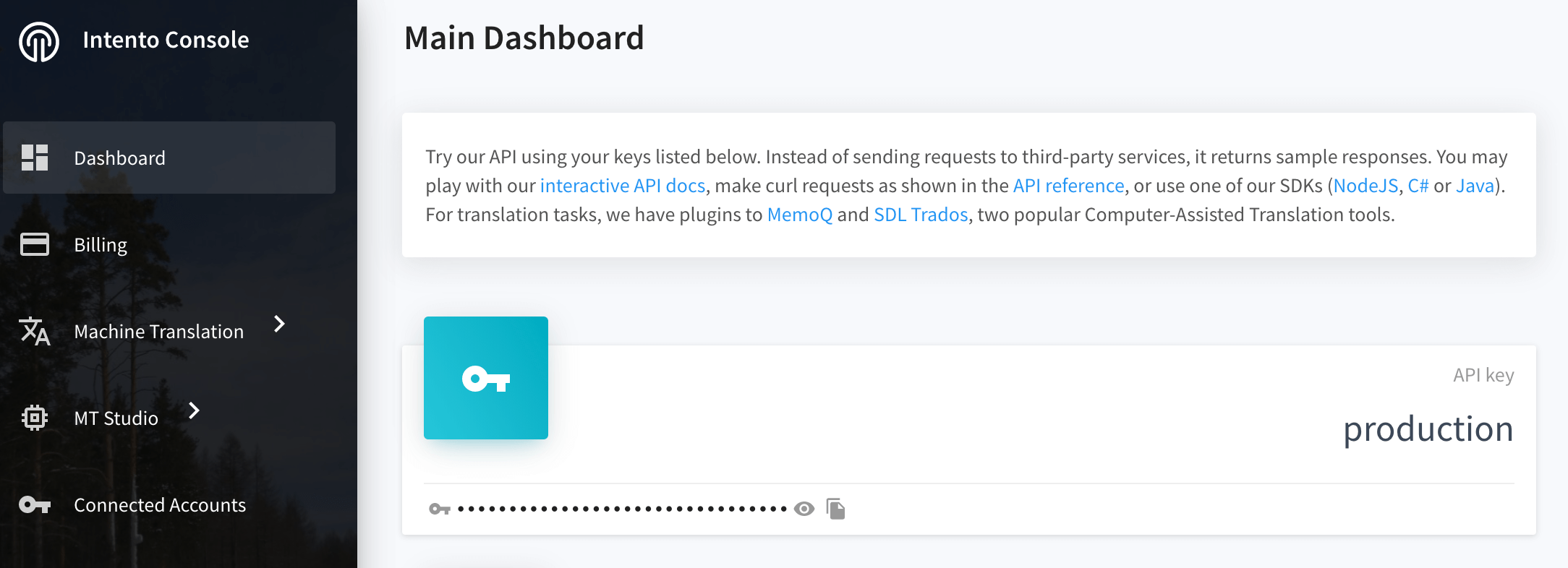
Set the name for your engine, and insert the production API key:
You can find it in Intento Console, right in the Dashboard.
You can enter your own credentials for the providers as well, and use your custom model by filling out its name:
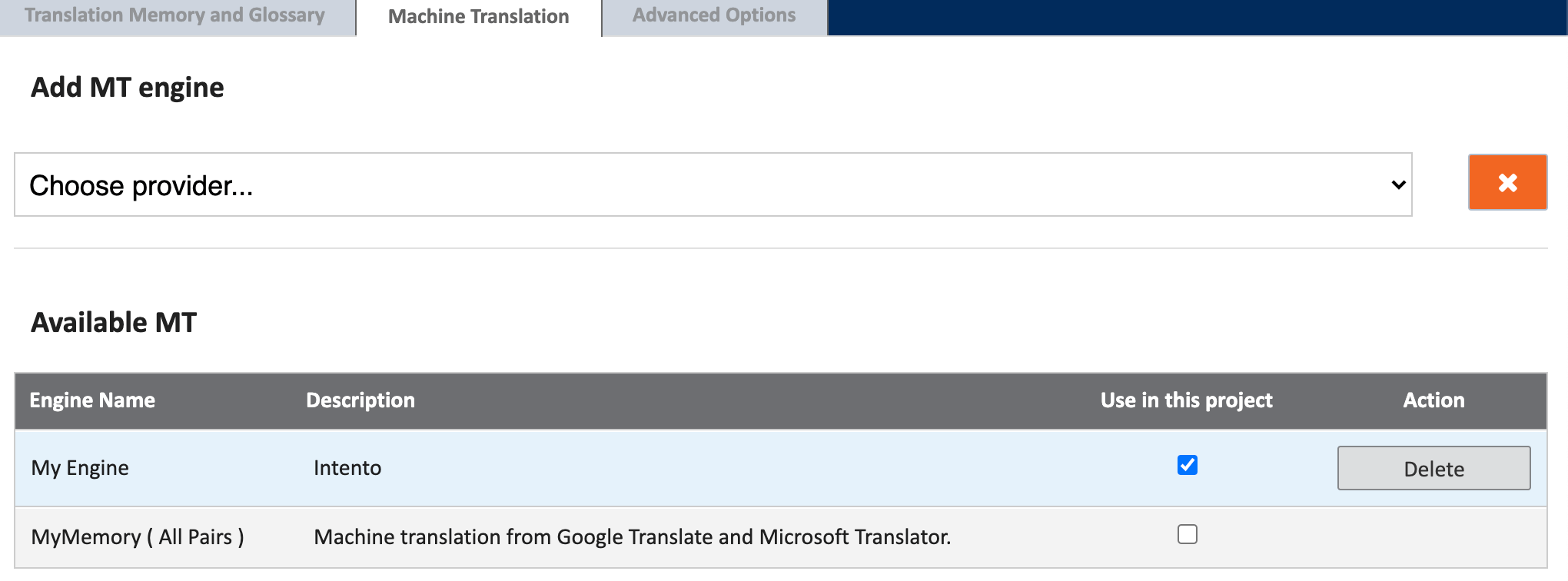
Check the box next to Intento in the Available MT tab to get your MT translations:
Please note that once you’ve chosen Intento as the MT provider, pre-translation won’t happen automatically.
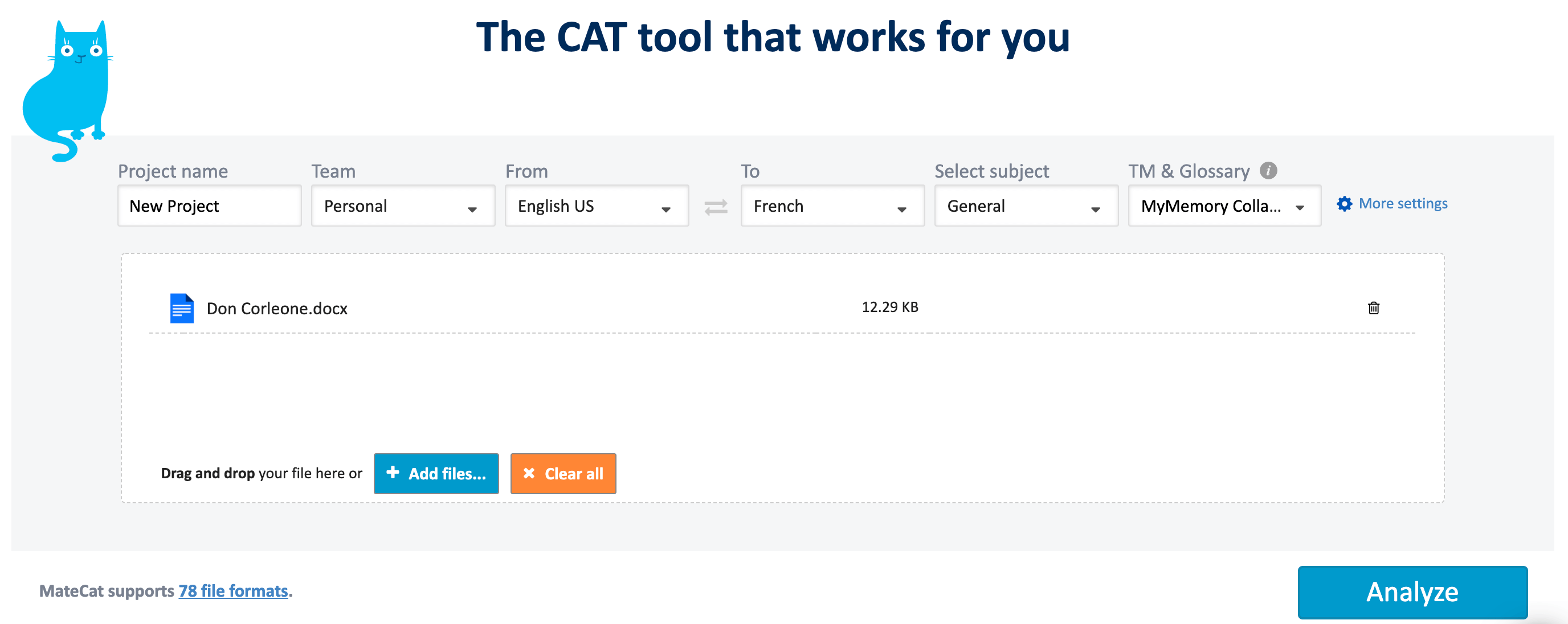
Upload a file in your project, set the name and the team, choose the language pair, subject of the text, TM & Glossary (if you are using any), and click Analyze to see the translation of the segments:
Once the analysis is complete, you can click Translate to see the translated segments.
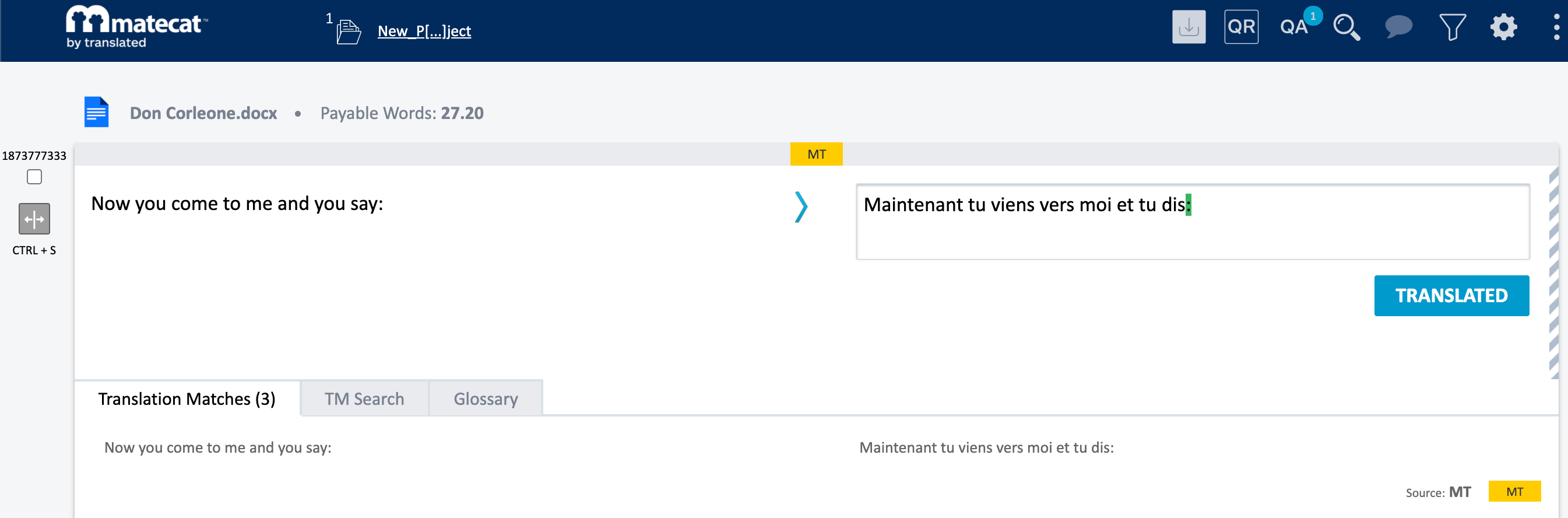
Click Translate:
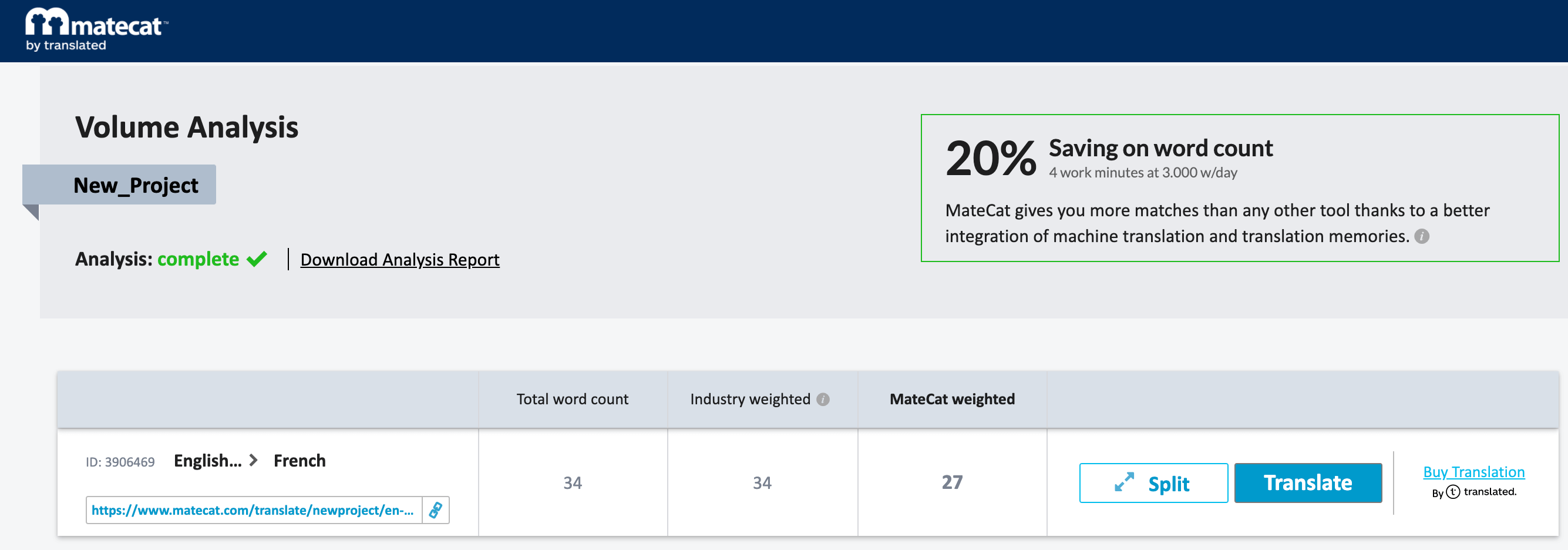
See the translated segment: