
How to connect Intento to Phrase TMS
Before starting, please make sure that you have an account in the Intento Console and a Team, Business, or Enterprise account in Phrase TMS.
If you have not registered in the Console yet and don't have a production API key, kindly contact us via hello@inten.to, and we'll be happy to help.
This guide will walk you through setting up Intento as a machine translation engine inside Phrase TMS. No technical experience is required, and by following the steps in order, you should have everything up and running in about 10 minutes.
Create a Language AI profile in Phrase
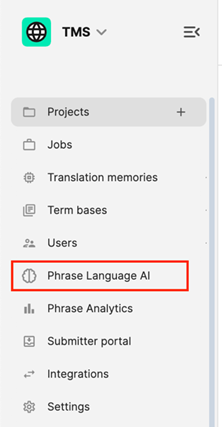
In Phrase TMS, open the main menu and go to Phrase Language AI.
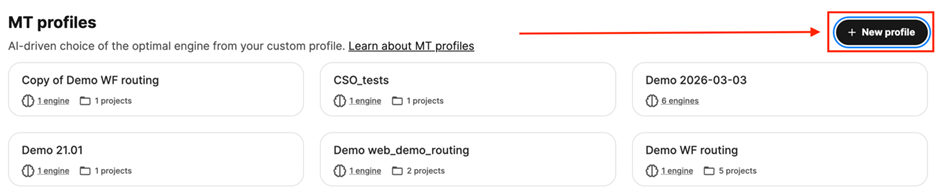
Click New profile.
Give it a clear name so you can identify it later — for example:
Intento–Marketing–best.Click Create.
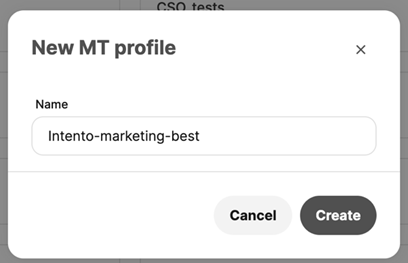
Naming it after the routing you'll use (e.g. the language pair or use case) makes it easier to manage multiple profiles later.
Add the BYO Engine to your profile
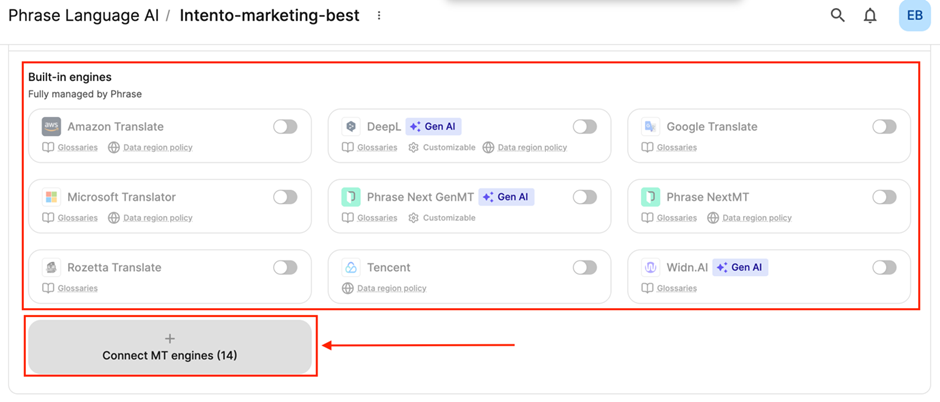
Inside the profile you just created, you'll see a list of available engines.
If you only want Intento to be used, disable the other engines that are already listed (optional but recommended).
Click Connect MT engines.
Select Bring Your Own (BYO) Engine from the list.
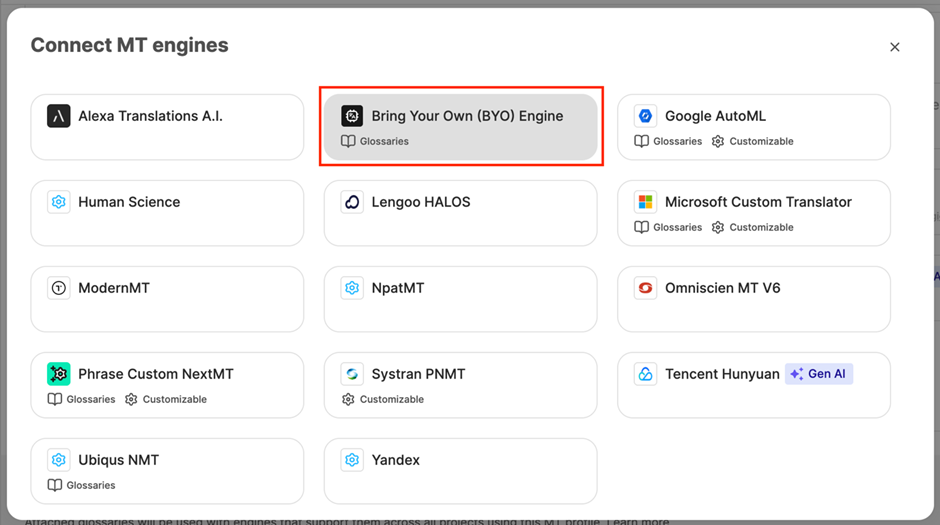
Enter the connection details
In the BYO Engine form, paste http://connectors.inten.to/tms/api/phrasetms-native into the "Base engine URL" field.
Leave the Authorization method as "HTTP header".
In the Header name field, type exactly:
X-Api-TokenIn the Header value field, paste your Intento API key.
Click Validate connection — you should see a green confirmation. If not, double-check the URL and API key.
The header name must be typed exactly as shown — including the capital letters and hyphen. Phrase won't warn you if it's wrong.
Set the routing label
In the BYO Engine form, scroll down to find Custom labels (optional).
In the Key field, type:
routingIn the Value field, type the name of your Intento routing (e.g.
my-intento-routing).Click Add in the top-right corner to save the label.
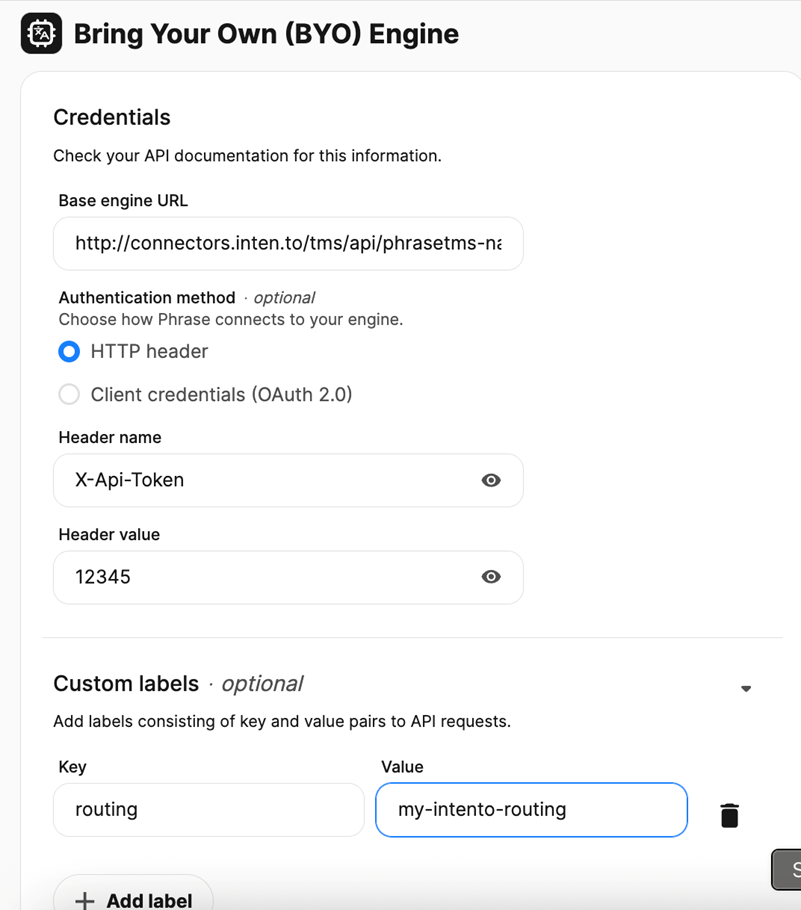
This step is easy to skip because the field says "optional" — but if you leave it blank, Intento will use a default routing instead of yours. Always fill it in.
Please note: if you configure an Intento routing that uses LLM Workflows, clicking the Validate connection button may return an error. This is a known issue; it happens because LLM Workflows require a bit more time than traditional providers to return a translation, and the Validate feature in Phrase just does not wait long enough.
Create a project and attach your profile
Go to Projects → New project.
Fill in the project name, source language, and target languages.
In the project settings, find the AI/machine translation service section.
Select the Language AI profile you created.
Confirm and finish creating the project.
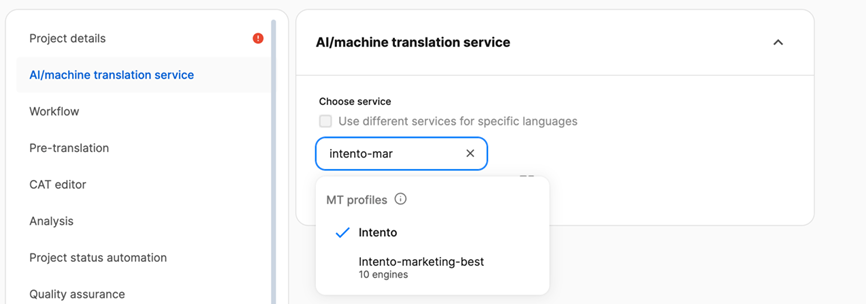
Create a job and run pre-translation
Inside your project, go to Jobs → New.
Upload the file you want translated.
In the job options, turn on Automatically pre-translate on job creation. This fills all segments with machine translation before your linguists start working.
Click Create job.
After that, the MT process will start. You will see the progress in Phrase TMS itself, or you can navigate to the https://console.inten.to/translate/jobs page in your Intento Console to see the status of new translation operations.
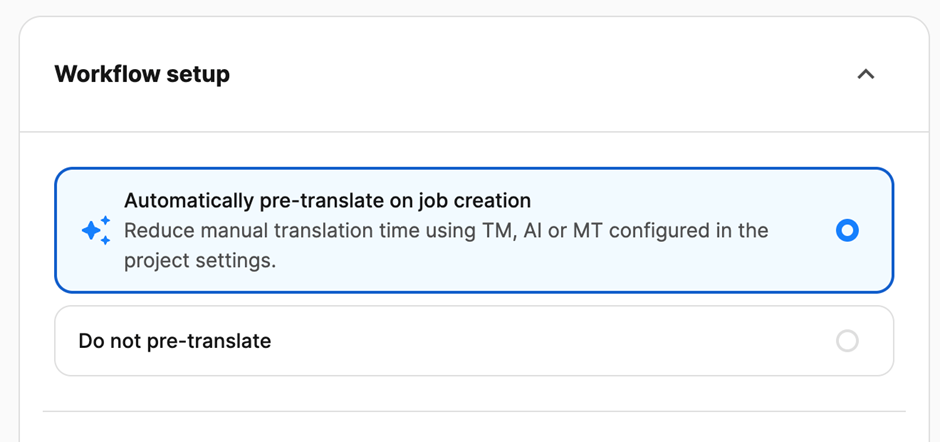
Pre-translation is especially important if you're using a GenAI engine — in-editor suggestions have a 15-second timeout, which can cause gaps. Pre-translating first avoids this entirely.
Something not working?
Connection validation fails
Make sure you're using the correct URL.
Check that the header name is exactly
X-Api-Token— capital X, capital A, capital T.Confirm your API key is active and hasn't been revoked. Contact your Intento account manager if unsure.
Translations look wrong or unexpected
Check that the custom label
routingis present and the value matches your routing name exactly (case-sensitive).Make sure the project is using the correct Language AI profile.
Review any TM (Translation Memory) fuzzy match thresholds in your project settings — they might be overriding machine translation for some segments.
Segments are empty after job creation
If you're using a GenAI routing, timeouts may be the cause.
In the Projects view, select the affected jobs, then click Pretranslate to try again.
If segments are still empty after retrying, contact Intento support before recreating the project from scratch.