
Intento Translation for Confluence
Read any Confluence page in your own language. Intento Translation translates a page's title, body, and comments on demand — right where you're reading — using the Intento machine-translation platform.
Translation is view-only: the original page is never changed and nothing is written back. Each person picks the language they want to read in; everyone else keeps seeing the original.
Translate a page on demand
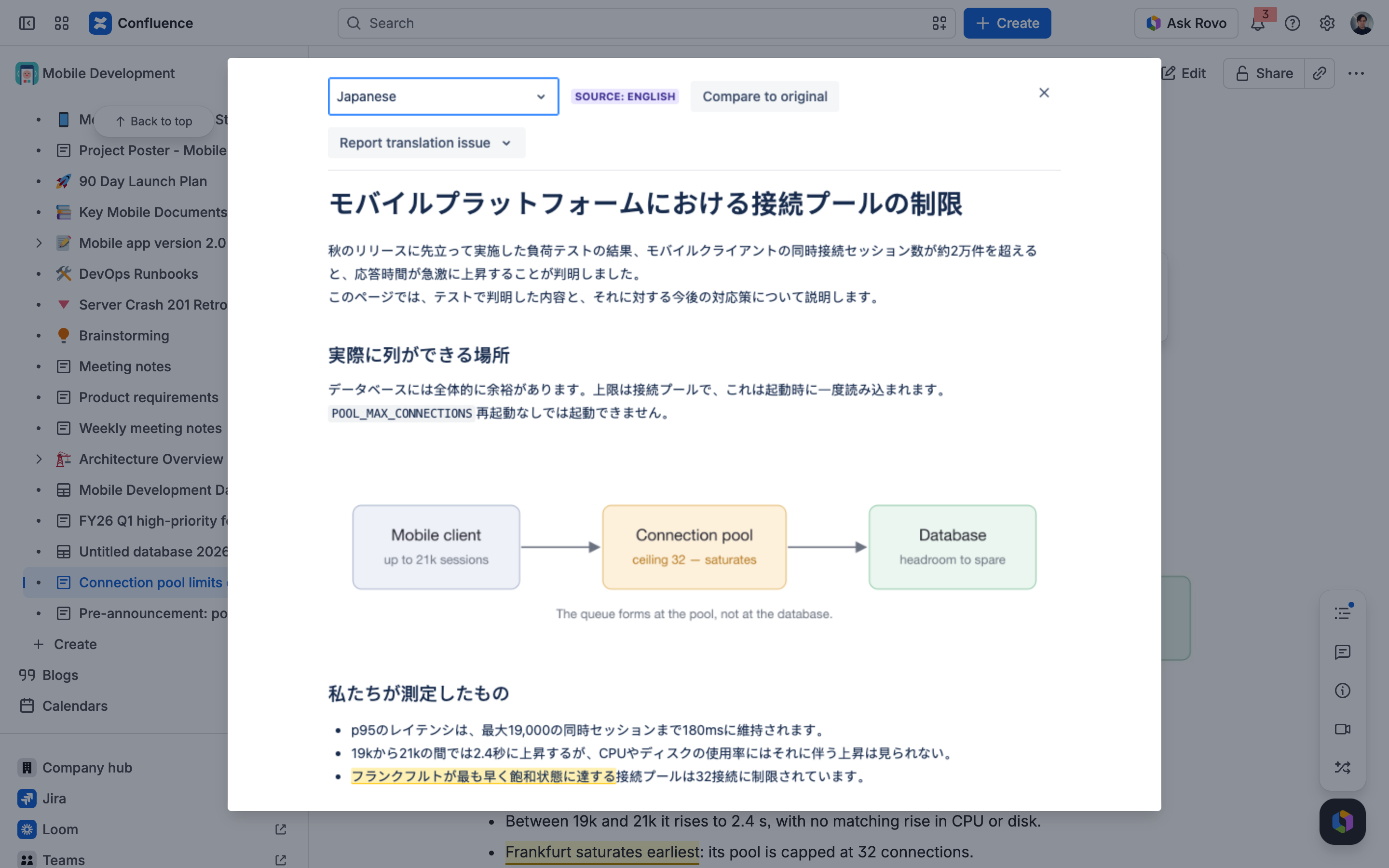
Open any page and click Translate (Intento) under the page title — a translation window opens that reads like the page itself: the title as a page heading, the body at its familiar width and styling, images in place, and the comments below, just as you'd expect. Pick a target language — that's it, there's no separate "Translate" button. The original page stays exactly as it was; close the window with the ✕ (or Esc) and you're right back on it.
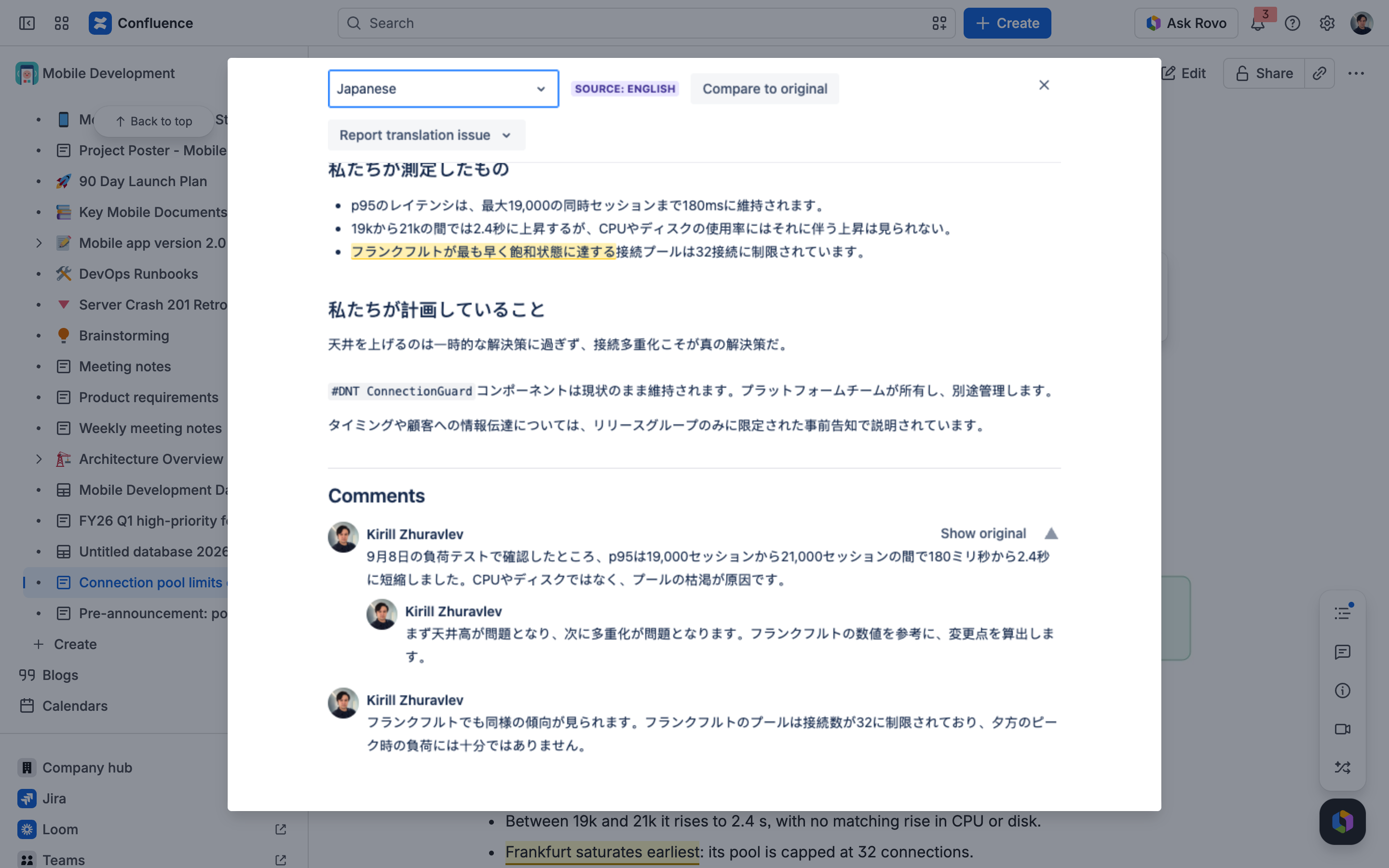
Comments come along, each with its own switch
Page comments are translated together with the page, each under its author's name — and replies come with them, shown indented beneath the comment they answer, so whole conversations read naturally in your language. Want to see what someone originally wrote? Every comment and reply has its own Show original toggle — switch one back without affecting the rest.
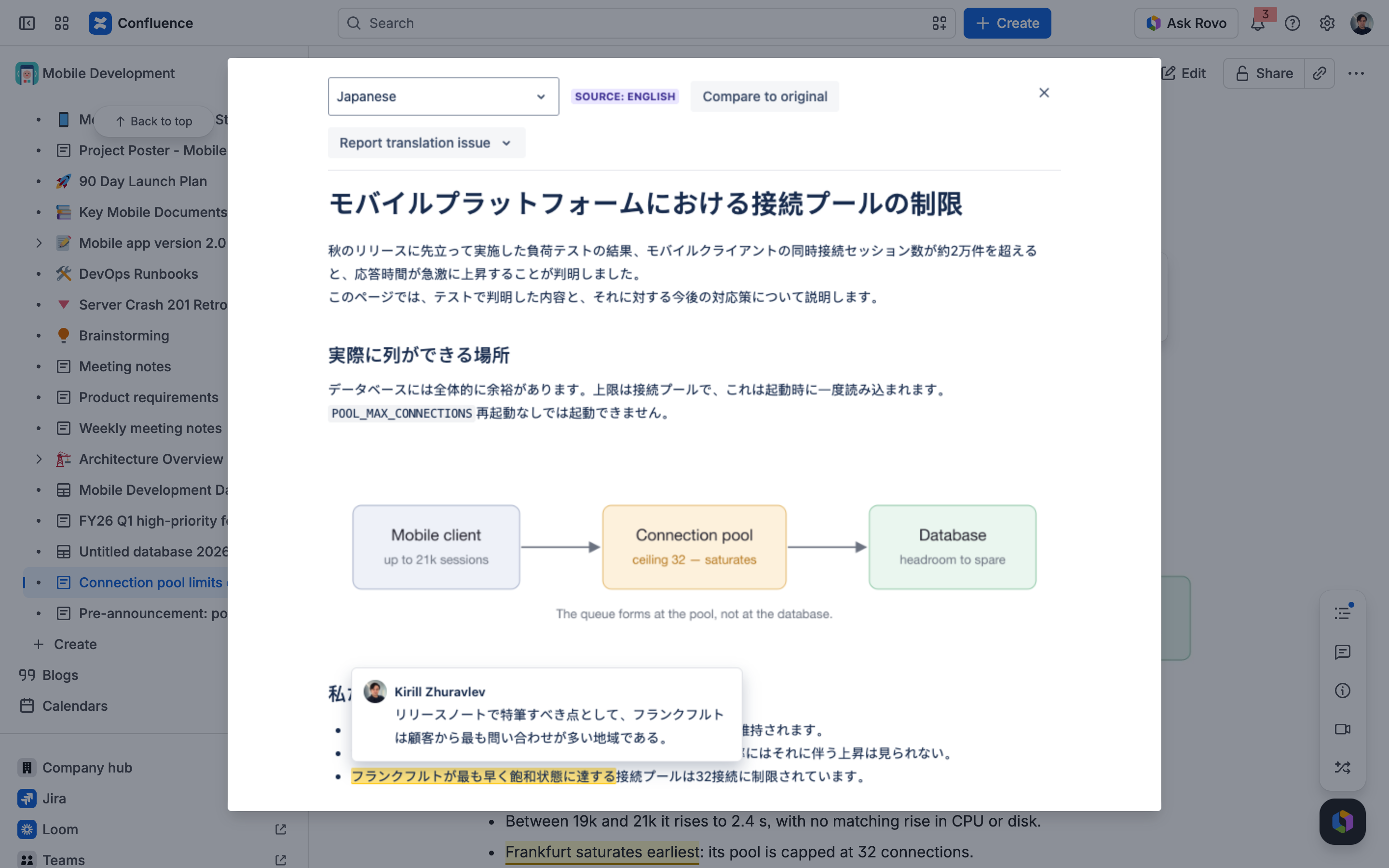
Comments on highlighted text, right where they belong
In Confluence, people often comment on a highlighted phrase right inside the page — and in the translation view those highlights are right there in the translated text, just like on the original page. Click a highlighted phrase and the conversation opens next to it, fully translated, with every reply threaded and each person's picture and name. Comments that were already resolved stay out of the way, matching what you'd see on the page itself.
Links, code, and formatting stay intact
Only the words are translated. Links keep working, code — inline snippets and code blocks — is left untouched and rendered as code, and bold, lists, and other formatting carry over unchanged. Macros and embedded diagrams aren't translated yet; the text around them translates normally.
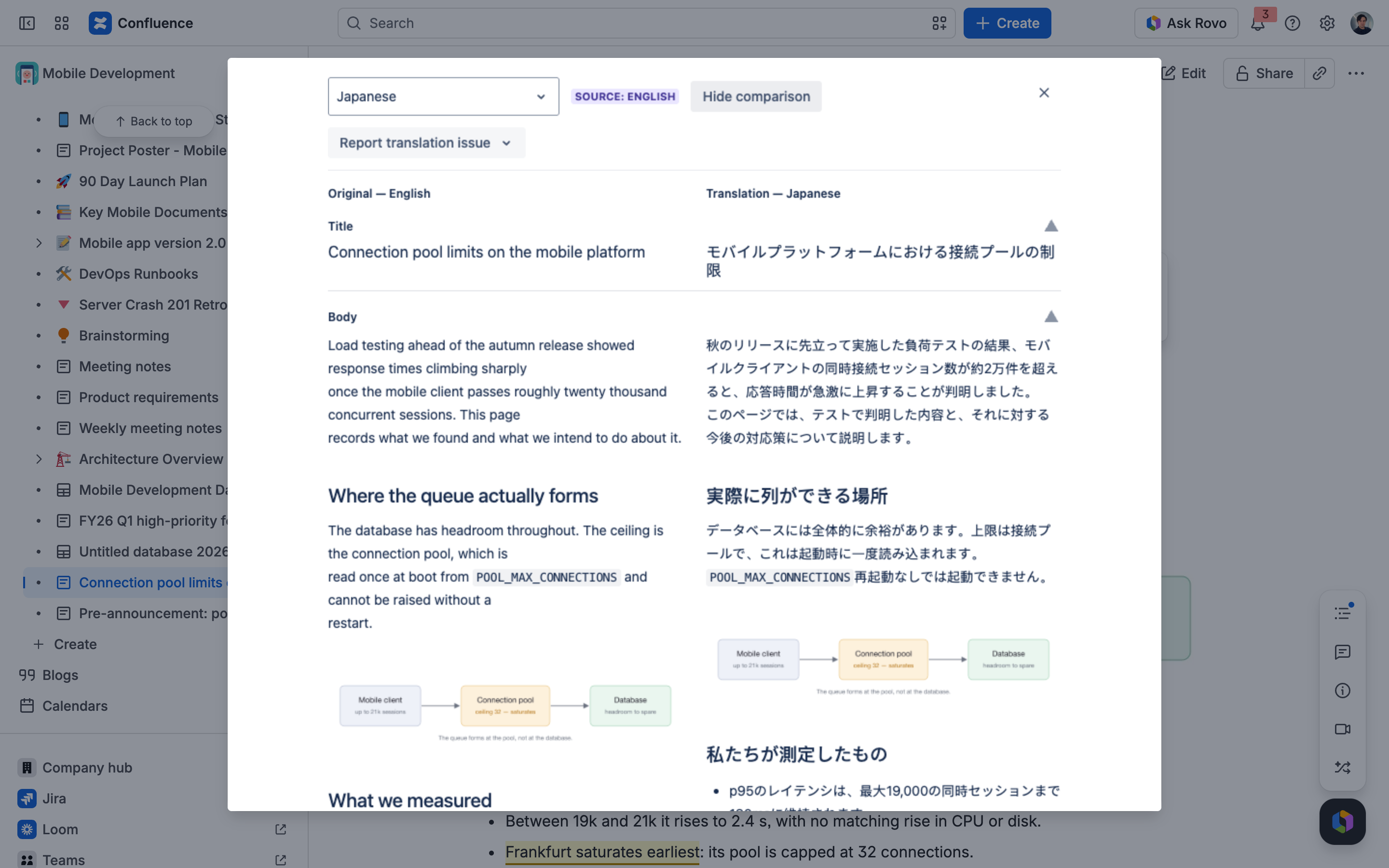
Compare original and translation
The Compare to original button switches to a side-by-side view, one row per item — title, body, and each comment and reply, inline ones included — with the original on the left and the translation on the right, aligned so you can check any single piece at a glance.
Keep the right things untranslated
Some text should never be translated. The app automatically protects and restores:
Do-not-translate hashtags you define (for example
#DNT), case-insensitive.Placeholders like
{{count}},%s, or${value}.Web links and translation keys.
Code — inline code and code blocks are left in the original entirely.
Admins can add their own patterns as regular expressions. Everything else translates normally around these protected pieces.
Who can translate what — permissions and access
You can translate exactly what you can already read — nothing more, nothing less.
When you translate a page, the app reads the page, its comments and its attached images with your own Confluence permissions, the same ones that decide whether you can open the page in the first place. Page restrictions and space permissions apply exactly as they do everywhere else in Confluence:
If you can open a page, you can translate it — including pages restricted to a few people, as long as you are one of them.
If you can't open a page, you can't translate it either. The translation window never shows anyone content they could not see on their own.
There is no extra "allow access" step for readers. Your Confluence admin agrees to the app's permissions once, when installing it.
The translation is shown to you only. The original page and its comments are never changed, and other readers keep seeing the original.
What leaves Confluence. The text being translated — the title, body and comments of the page you are reading — is sent to the Intento platform for translation, the same way any translation request works. Images are shown in the translation window but are not sent anywhere for translation.
When the app itself is kept out. Some organisations limit what apps may access in certain spaces. Because translation reads with your permissions, this normally makes no difference to you. If a page is out of reach for both you and the app, the translation window says so plainly — "Intento can't read this page" — with details your admin can act on, instead of showing an empty window. Admins can also switch this reading mode off (see Admin setup below); the app then relies on its own access only.
Admin setup
A Confluence admin connects Intento once for the whole site. Open ⚙ Settings → Apps → Manage apps → Intento Translation → Configure and set the Intento API key, the languages people can translate into, do-not-translate rules, and whether users can report translation issues. The API key is stored securely and never shown again after saving.
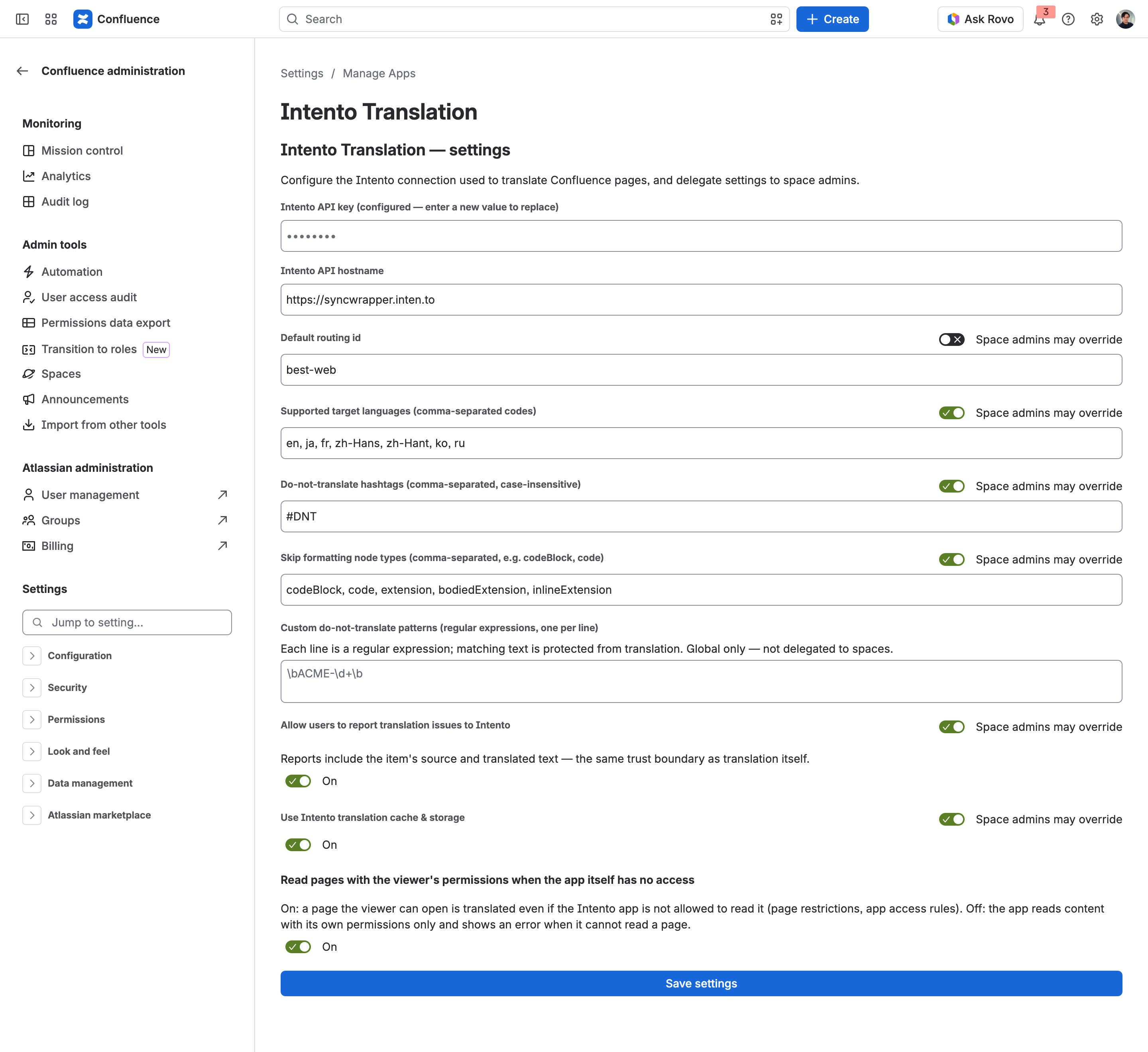
For each setting, the admin also decides whether space admins are allowed to adjust it for their own space — the "Space admins may override" switch next to each one. The API key and connection hostname are always managed centrally and can't be delegated.
One more switch, on by default, controls what happens on pages the app itself is not allowed to open — for example pages with view restrictions, or spaces where apps are kept out: "Read pages with the viewer's permissions when the app itself has no access". When it is on, anyone who can open a page can translate it, because the translation reads the page with that person's own permissions; nothing is shown to them that they could not already see. When it is off, the app only reads what it has been granted itself and tells the reader when a page is out of its reach.
Per-space settings
Where the admin allows it, a space admin can tailor settings for their space without affecting anyone else — for example, offering a different set of languages or adding space-specific do-not-translate terms. Open Space settings → Integrations → Intento Translation, switch on Override for this space next to a setting, and save. Anything left alone simply follows the site-wide setting.
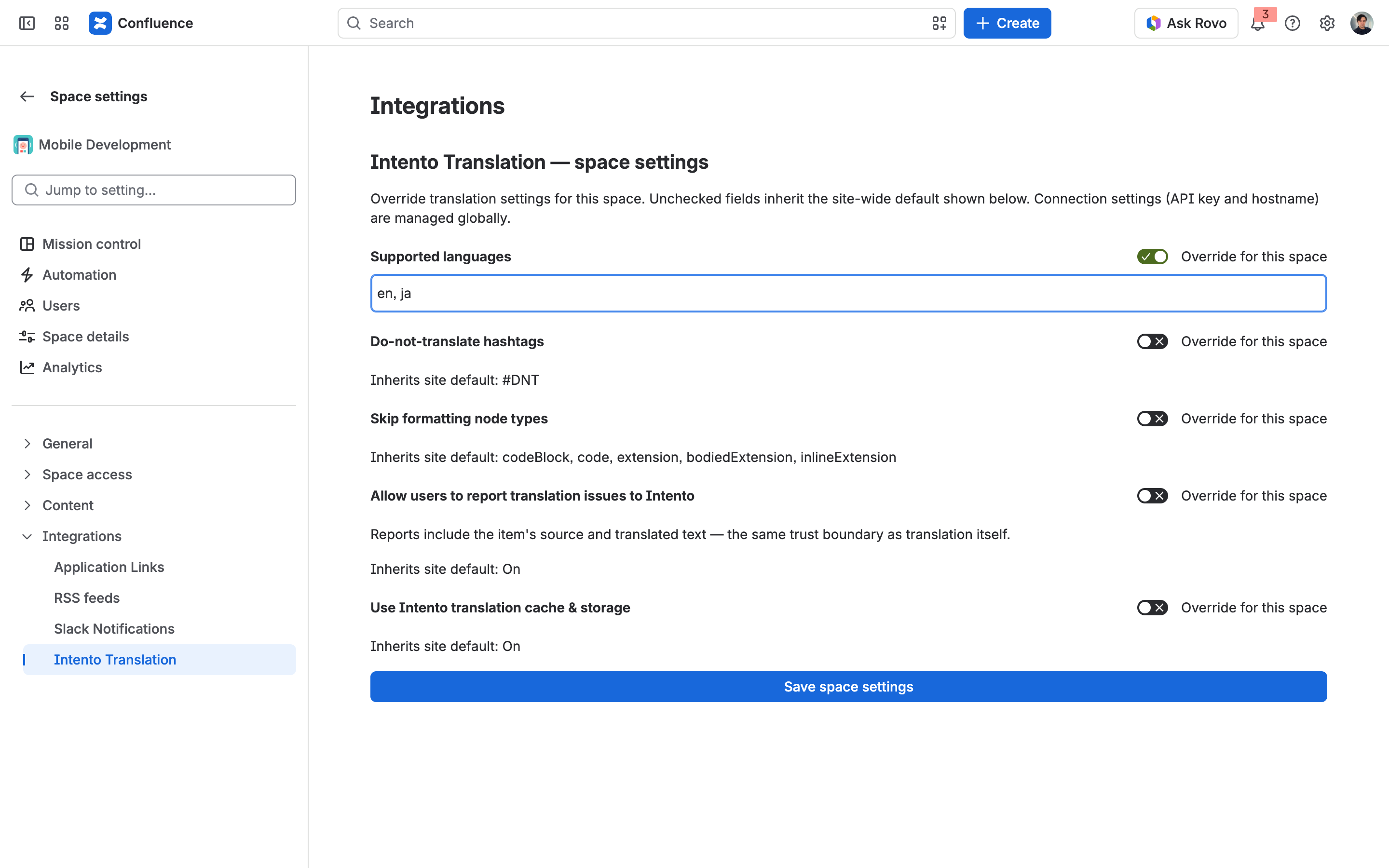
An override takes effect immediately — a space that limits languages to English and Japanese shows only those two in the translation dropdown.
If an admin later stops delegating a setting, any space value you'd saved isn't lost — it just stops applying, and comes back if delegation is turned on again. When a setting is centrally managed, the space page shows it as read-only, with a note explaining that your admin manages it and a button to remove your saved value if you no longer want it.
Report a translation issue
Spotted a bad translation? When reporting is enabled, every translated item — title, body, each comment, and every row in Compare — has a small Report translation issue icon. Clicking it opens a short form for that specific item: the source text and current translation for context, a suggested translation pre-filled so you can quickly correct it, and an optional comment.
Your report goes to Intento to help improve translation quality over time. No rating, issue category, or personal information is sent. If something goes wrong — sending a report or running a translation — the message includes a See more option that reveals the technical detail, so you can pass it to support.
Installation
Everything a Confluence site admin needs to install the app, keep it up to date, and remove it cleanly. For what to configure once it is installed, see Configuration; for the permission and data-flow model, Security and data flow.
Before you start
Requirement | Detail |
|---|---|
Confluence Cloud | The app is built on Atlassian Forge, which targets Cloud only, so it runs on Confluence Cloud and there is no Server or Data Center build. |
Site admin rights | Installing an app and consenting to its permissions is a site-admin action. |
An Intento account | Translation runs on the Intento platform. You need an Intento API key — get one from the Intento console. Without it the app installs fine but shows "Translation not configured" to users. |
Outbound network access | The app sends text to be translated to |
Feedback API licence (optional) | Only needed if you leave "Allow users to report translation issues to Intento" on. Ask Intento to enable it on your account key. |
This app is not "Runs on Atlassian". That badge is reserved for apps that keep all data inside Atlassian's infrastructure. This app translates by calling the Intento platform, so content leaves Atlassian by design. Security and data flow sets out exactly what is sent and what is not.
Install
The app is installed from its Atlassian Marketplace listing by a site admin, like any other Cloud app. During installation Atlassian shows a consent screen listing the permissions the app asks for and the external hosts it may contact — that screen is the complete, authoritative list. The scope table explains why each entry is there.
This app requests more scopes than a typical read-only app, for a specific reason: it reads pages, comments, attached images, and the space and user information needed to render a faithful translated copy of the page, and it checks the reader's own permissions before showing anything. Each scope is justified individually in Security and data flow.
End users are never prompted. The admin consents once, on behalf of the site.
Nothing is translated until the connection is configured — go straight to Configuration after installing.
Where the app appears
Surface | Where the user sees it |
|---|---|
Translate (Intento) | Under the page title, in the page byline. Opens the translation window. |
Intento Translation settings page | Confluence administration — see Configuration |
Intento Translation space settings | Space settings → Integrations |
The translation window is a read-only view layered over the page. The app never writes to a page, so it changes nothing about your content, page history, or notifications.
Upgrades
Atlassian handles delivery, and how an update reaches you depends on what changed:
Most updates arrive automatically. Fixes and new features that do not change the app's permissions are rolled out by Forge to every site with no admin action and no prompt. You cannot pin an older version.
Updates that change permissions wait for you. If a release adds, swaps, or removes a permission scope, changes the external hosts the app contacts, or changes its content security policy, Atlassian treats it as a new major version and does not apply it until a site admin consents. Until then your site keeps running the version it has.
This app has changed its permissions as capabilities were added — displaying a page's attached images in the translated window, for instance, required a scope of its own — so expect the occasional consent prompt rather than treating one as a red flag. Release notes say explicitly when an entry requires consent — see Release notes, whose entries are headed by the same version number your administration screen shows, so you can find the one you are running. The version itself is assigned by Atlassian rather than chosen by us; the mechanics are documented under App versions.
Your settings survive upgrades. Nothing needs to be re-entered, including the API key.
Uninstall
Uninstalling from the site's app administration removes the byline item, the admin page, and the space settings tab immediately. Readers see pages exactly as they always were — translation was only ever a view, so there is nothing left behind in your content: no page copies, no properties, no comments, no attachments, no version history entries.
What happens to the settings you saved. The app's stored configuration — the API key, languages, do-not-translate rules, delegation toggles, and every space-level override — lives in Atlassian's Forge storage, inside your site's Atlassian infrastructure. On uninstall Atlassian soft-deletes it and retains it for 28 days before permanent deletion, per its hosted-storage data lifecycle.
If you reinstall, the app starts empty — old settings are not restored automatically. Reconnecting a new installation to the previous data is possible only on request to Atlassian, with your consent, and only within 21 days of the uninstall. In practice: if you plan to reinstall, keep a note of your settings, and treat the API key as something you will paste again.
Nothing about uninstalling touches your Intento account or any translation history stored there — that is governed by your agreement with Intento.
Sandbox and multiple sites
App settings are stored per installation. A sandbox site, a second production site, and your main site each keep their own API key, languages, and overrides — configuring one does not configure the others. Expect to set up each site you install on.
Verifying it works
Open any page you can already read.
Click Translate (Intento) under the page title.
Pick a target language in the window that opens.
The title, body, and comments appear translated, reading like the page itself, and the original page is untouched. If you see "Translation not configured", the API key has not been saved yet; if you see an error, open See more on the message — it carries the detail support needs. Troubleshooting maps the common cases.
Configuration
The app needs an Intento connection before it can translate anything. Site-wide settings are configured once by a Confluence admin; a subset can be delegated to space admins.
Installing the app: Installation. Permissions and data flow: Security and data flow.
Where the settings page is
Open ⚙ Settings → Apps → Manage apps → Intento Translation → Configure. The page also has a direct address you can bookmark:
https://<site>.atlassian.net/wiki/admin/forge/apps/<appId>/<envId>/admin
Substitute your site, the app id, and the environment id — both ids are visible in the URL the Configure action opens.
Only a Confluence admin can save here. The app checks site-admin group membership on the server, so a non-admin who reaches the page cannot save: the page answers "You must be a Confluence admin to save these settings."
Site-wide settings
Field | Notes |
|---|---|
Intento API key | Your production key from the Intento console. Stored as an encrypted secret; after saving, the field shows as configured and the key is never displayed back, to anyone, including admins. Enter a new value to replace it. Required — without it users see "Translation not configured". |
Intento API hostname | Defaults to |
Default routing id | The Intento smart-routing table that decides which translation engines are used. Use |
Supported target languages | Comma-separated codes offered in the language dropdown, e.g. |
Do-not-translate hashtags | Comma-separated, case-insensitive, e.g. |
Skip formatting node types | Content types left untranslated. Default |
Custom do-not-translate patterns | One regular expression per line; matching text is protected from translation. Useful for product SKUs or internal identifiers, e.g. |
Allow users to report translation issues to Intento | Default on. Viewers get a "Report translation issue" control on each translated item; a report sends that item's source and translated text, plus an optional correction, to Intento. Off hides the control and rejects reports on the server. |
Use Intento translation cache & storage | Default on. Lets translation requests use Intento's server-side cache and translation memory, which makes repeat views faster and cheaper. Off sends neither. |
Read pages with the viewer's permissions when the app itself has no access | Default on. Site-wide only. See below — this one is worth understanding before you change it. |
Defaults on a fresh install: hostname https://syncwrapper.inten.to, routing best, languages en, ja, fr, zh-Hans, zh-Hant, ko, do-not-translate #DNT, skip codeBlock, code, all three toggles on.
Reading with the viewer's permissions
Confluence restricts content in two independent ways: people are limited by page restrictions and space permissions, and apps can be limited separately by data security policies and space-level app exclusions. The two do not have to agree — an app can be locked out of a page its readers can open perfectly well.
This toggle decides what happens in that gap.
On (default). The page is read with the reader's own permissions, from the page they already have open, and the app's own identity is only the fallback. So a page the reader can open is translated even where the app itself is refused it. Nobody is ever shown content they could not already see, because the read is the permission check — page restrictions and space permissions apply exactly as they always do.
Off. The app reads only what it has been granted itself. On a page it is excluded from, the reader gets a clear message instead of a translation.
Governance note, for the review this usually triggers: page restrictions limit which people may see a page, and the viewer is one of the permitted people, acting deliberately. What leaves Confluence for translation is unchanged by this setting — the same text of the same page the same person is already reading. Turning it off does not reduce what is sent to Intento; it only reduces which pages can be translated.
Per-space overrides
A space admin can tailor a subset of the settings for their own space — a different language set, space-specific do-not-translate terms — without affecting any other space.
Open Space settings → Integrations → Intento Translation, switch on Override for this space next to a setting, and save. Saving requires space-admin permission on that space, enforced on the server.
Overridable per space | Effect |
|---|---|
Supported target languages | Replaces the site list in this space's dropdown |
Do-not-translate hashtags | Replaces the site list for this space |
Skip formatting node types | Replaces the site list for this space |
Allow users to report translation issues | Overrides the site toggle for this space |
Use Intento translation cache & storage | Overrides the site toggle for this space |
Default routing id | Overrides the routing for this space's translations — locked by default, see below |
Each field shows the inherited site-wide value alongside it. An override replaces the site value for that field rather than merging with it; a field left alone simply inherits. Overrides take effect immediately — a space that limits languages to English and Japanese shows only those two in the translation dropdown.
The API key and hostname are never delegable. They stay site-wide permanently, and no toggle exposes them to space admins. A shared key handed to space admins is a key that leaks; a per-space hostname without a per-space key is worse. This is settled, not a gap waiting to be filled.
Choosing what space admins may override
Next to each of the six delegable settings the site-wide page carries a "Space admins may override" toggle. Five default to on; default routing id defaults to off, so routing delegation is something you opt into deliberately.
Turning a toggle off makes that setting centrally managed: space admins see it read-only, with a note that an admin manages it and a button to remove their saved value, and your site-wide value applies to every space.
Revoking keeps the data. Turning a toggle off does not erase space overrides. They are kept exactly as saved and simply stop applying. Turn the toggle back on and each space's override reactivates as it was — no space admin's work is silently destroyed.
The page tells you the blast radius before you save:
Switching a field off shows "N space(s) currently override this field (KEYS…). Their overrides will stop applying but stay saved." A checkbox, "Also delete these space overrides" (unchecked by default), is the only way to actually erase them. If the count cannot be fetched the page falls back to a generic note — the count is informative, not a precondition.
Switching a field back on shows the mirror warning: "N space(s) have saved overrides that will become active again (KEYS…)." — so re-enabling months later does not surprise you.
Enforcement is server-side, not hidden UI. A locked field resolves from the site-wide config everywhere it is used, including the language dropdown and the translation itself. A space admin working from a settings tab opened before you locked a field cannot sneak an override in: on save the server drops the now-locked fields, leaves their stored values untouched, saves the rest, and reports back — the space admin sees "Some fields are no longer overridable and were not saved: …". They can always remove their own stored override while a field is locked; they just cannot add or change one.
Reusable configuration across spaces
The site-wide settings are the reusable configuration: every space inherits them unless its admin overrides a delegated field, and locking a field forces every space back onto the site-wide value. A new space needs no configuration at all.
Not available today: multiple named configuration templates that a system admin defines and assigns to spaces in bulk. The model is one site-wide configuration plus per-space overrides. If you need several distinct profiles applied across many spaces, that is a roadmap item, not a setting you are failing to find.
After saving
Open a page and click Translate (Intento) under the title. The translated window reads like the page itself — title, body at its usual width, images in place, and comments below, with inline-comment highlights where they belong. Compare to original shows both side by side, one row per item.
If something fails, the error carries a See more disclosure with the error code, message, the response from Intento or Confluence, and the endpoint — everything support needs. Troubleshooting covers the cases you can fix yourself.
Security and data flow
What the app can read, whose permissions it uses, what leaves your Confluence site, and where the Intento API key lives. Written for admins and security reviewers evaluating the app.
The short version
The app is read-only. It cannot write to a page, and does not ask for permission to.
A reader can translate exactly what they can already open — no more, no less.
The text being translated leaves Atlassian and is sent to the Intento platform. That is the app's entire purpose, and it is why the app does not carry the "Runs on Atlassian" badge.
Images are never sent anywhere. They are shown in the translated window and left out of the translation request.
The Intento API key is stored as an encrypted Forge secret and is never returned to the browser or shown to anyone after it is saved.
What the app can read
Atlassian shows this list on the consent screen at install. Every scope, and why it is there:
Scope | Why it is needed |
|---|---|
| Read the page being translated — its title and body. |
| Read that page's comments, both the ones below the page and the inline comments anchored to highlighted text, including replies. |
| Identify the space a page belongs to, so space-level settings apply to it. |
| Check whether the person asking for a translation is allowed to read that page, before anything is fetched or translated. This scope is what makes the app's own permission enforcement possible. |
| Show comment authors by name and picture in the translated view, as Confluence does on the page itself. |
| Confirm that someone saving site-wide settings really is a site admin. Used for the admin page only. |
| Fetch attached images so the translated window can display them in place. Without it, images in a translated page would be missing. |
| Store the app's own configuration (languages, do-not-translate rules, delegation toggles, space overrides) and the Intento API key inside Atlassian's Forge storage. Holds no page content. |
The app also declares one content security policy allowance, styles: unsafe-inline. It lets the translation window apply Atlassian's own component styling so the translated page looks like a Confluence page. It permits styling, not script execution, and grants no access to content.
There is no write scope. The app cannot create, edit, move, or delete pages, cannot post comments, and cannot modify attachments — not by configuration, but because the permission to do so was never requested. Nothing it does appears in page history.
Outbound hosts
Host | What goes there |
|---|---|
| Translation requests |
| Translation-issue reports, when that feature is left on |
Both are declared in the app and appear on the consent screen. The app contacts nothing else. Adding a host in a future release would change the app's permissions and therefore require a fresh admin consent before it reached your site.
Whose permissions apply
By default, the reader's. When someone translates a page, the app reads that page, its comments, and its images with their Confluence permissions, from the page they already have open. The read is the permission check: page restrictions and space permissions apply exactly as they do everywhere else in Confluence, and the app has no path around them. If you can open a page, you can translate it. If you cannot, you cannot.
When the app's own identity is used. Confluence limits apps separately from people — a data security policy or a space's app exclusions can refuse the app a page its readers can open. In that case, and only then, the app falls back to reading with its own identity — and because that identity is not the reader's, it enforces the reader's permissions itself before returning anything: it asks Confluence whether that specific person may read that specific page, and refuses if the answer is no.
The app's two settings pages are checked the same way on every path, since they are not content reads at all: saving site-wide settings is gated on site-admin group membership, and saving a space override on that person's permissions for that space.
Every one of these checks fails closed: an error, a timeout, or an ambiguous answer denies the request rather than allowing it. No screen is trusted to hide anything — the server decides.
Which path is used first is controlled by the "Read pages with the viewer's permissions when the app itself has no access" setting, described in Configuration. Either way, the outcome for a reader is the same: they see a translation of a page they were already entitled to read, or a clear message.
There is no consent step for end users. The site admin consents once at install.
Who can change settings
Action | Required permission | Enforced |
|---|---|---|
Save site-wide settings | Confluence site admin | On the server, before the save is accepted |
Save space overrides | Space admin on that space | On the server, before the save is accepted |
A stale browser tab cannot be used to save a setting the user is no longer allowed to change: the server re-checks on every save, drops anything the person may not set, and reports what it ignored.
What leaves your site
On a translation. The text of the page being translated — its title, body, and comments including inline comments and replies — is sent to syncwrapper.inten.to together with the target language and the routing id. Formatting, links, and code are preserved locally: code is excluded from the request entirely, and link targets and macro internals are not part of the translated text.
When "Use Intento translation cache & storage" is on (the default) the request also carries the page URL as the storage key, plus a checksum per text segment. This is what lets Intento reuse a previous translation instead of paying for it twice. Turning the setting off removes both from the request.
On a translation-issue report (only when reporting is left on, and only when a user clicks the control): the reported item's source text and its translation, the target language, the user's optional suggested correction and comment, a link to the item, the routing used, and an identifier of the app version. No rating, no account data, no user identity, and no email address is sent.
What is never sent anywhere: image and attachment contents — they are fetched only to display in the translated window, and are excluded from every translation request — along with page properties, labels, version history, comment author identities, user accounts, and the contents of any page nobody asked to translate. The app translates on demand, per reader, per page. There is no crawler and no background job walking your spaces.
What the app stores
Inside Atlassian's Forge storage, on your site:
the site-wide configuration and every space override;
the Intento API key, written as an encrypted secret — a distinct storage class that the app writes but the front end can never read back. It is used only inside the app's server-side code to authenticate to Intento, and no screen, log line, or API response ever exposes it.
Translations are not stored by the app. There is no app-side translation cache and no copy of your page content in app storage. Caching, where enabled, happens on the Intento side under your Intento agreement.
On uninstall this storage follows Atlassian's retention rules — see Installation.
Data residency and the Atlassian badge
Because translation requires calling Intento, content leaves Atlassian's infrastructure in the course of normal operation. This makes the app ineligible for the "Runs on Atlassian" badge, and that absence is expected rather than a finding. What happens to content once it reaches Intento — processing location, retention, sub-processors — is governed by your agreement with Intento, not by this app.
If your organisation restricts which apps may access which spaces, those controls apply normally, and the setting described above decides whether readers can still translate pages they themselves can open.
Reporting a security issue
Contact Intento support with the details. Error messages in the app carry a See more disclosure containing the error code, the endpoint, and the response — useful to attach to a report, and safe to share: it never contains the API key.
Troubleshooting
Symptoms an admin or reader can hit, what causes them, and what to do. Configuration reference: Configuration.
First: collect the detail
Every failure in the app shows a See more disclosure under the error message. Open it. It carries the error code, the message, the response Confluence or Intento returned, the endpoint, and the routing id that was used — which is usually enough to identify the cause from the tables below without any further digging. It never contains your API key, so it is safe to paste into a support ticket.
The app cannot read the page
What you see | Cause | Fix |
|---|---|---|
"Intento can't read this page. A Confluence admin may need to allow the app to access this space or page…" | Confluence refused the page to both the reader's own permissions and the app's identity. In practice this almost always means the app is excluded and the viewer-permission path is unavailable | Three admin-side causes, in order of likelihood: (1) a data security policy app access rule covering that space — allowlist the app or exclude the space, in |
"You don't have permission to view this page's content." | The reader genuinely cannot read that page | Working as intended. If they should have access, that is a Confluence permissions change, not an app setting. |
"The app is not authorized on this site yet — ask a Confluence admin to reinstall or re-consent the app." | The app's authorization on the site is incomplete — typically a pending permission consent after an update | A site admin opens the app in app administration and completes the consent, or reinstalls. See Installation. |
Nothing translates
What you see | Cause | Fix |
|---|---|---|
"Translation not configured" | No Intento API key has been saved for this site | A Confluence admin saves the key — Configuration. Settings are per installation: configuring production does not configure a sandbox. |
"Couldn't translate", See more shows HTTP 401 or 403 | The API key is wrong, was revoked, or was rotated on the Intento side | Paste a current key from the Intento console. The field shows dots rather than the stored key — type the new value over them. |
"Couldn't translate", See more shows HTTP 404 with "routing strategy … is not available" | The Default routing id names a routing your Intento account does not have | Set it to |
"Couldn't translate", See more shows HTTP 429 | Intento is rate-limiting the account | Retry shortly. If it persists, the account's plan or quota is the constraint — an Intento-side conversation. |
"Couldn't translate", See more shows HTTP 5xx or a timeout | Transient failure upstream | Retry. If it continues, send the See more contents to support. |
"Couldn't translate" on one long page while others work | The request exceeds Intento's per-request size limit of roughly 10,000 characters. Long pages, or pages with many long comments, hit it | Known limitation — splitting long content across requests is not implemented yet. Translating a shorter page confirms the app itself is healthy. |
Reporting a translation issue fails
What you see | Cause | Fix |
|---|---|---|
The report form submits but errors, See more shows HTTP 400 with "No license attached to the provided client key" | Reporting posts to Intento's Feedback API, which needs its own licence on your account key | Ask Intento to enable the Feedback API licence for that key. Alternatively turn "Allow users to report translation issues to Intento" off so the control stops appearing. |
The report control is not visible at all | Reporting is switched off — site-wide, or for this space | Check the site-wide toggle, then the space's override. |
Settings won't save
What you see | Cause | Fix |
|---|---|---|
"You must be a Confluence admin to save these settings." | The account is not a Confluence site admin. The check runs on the server, so the form being visible means nothing | Have a site admin save it. |
On space settings: "Some fields are no longer overridable and were not saved: …" | A site admin locked those fields after this page was opened. The other fields saved normally | Reload the page. The locked fields now follow the site-wide value. You can still remove an override you had saved. |
"Some patterns are invalid and were not saved:" with line numbers | One or more custom do-not-translate patterns are not valid regular expressions | Fix the listed lines. The valid patterns on other lines saved normally. |
The translation is missing something
What you see | Cause | What to do |
|---|---|---|
The translated title appears with "This page has no body text or comments to translate." | The page really is empty — Confluence stores an empty page as a single empty paragraph — and has no comments | Nothing to fix; there was nothing to translate. |
Macros and embedded diagrams show as placeholders and their text is untranslated | Macro content is owned by the app that provides the macro, and is not translated | Known limitation. Text around a macro translates normally. |
Links to Jira issues or other pages appear as plain URLs instead of rich cards | Rich card previews are not rendered inside the translation window | Known limitation. The links still work and still point to the same place. |
A comment added while the window was open is missing | The comment list is read once, when the translation is produced | Close the window and translate again to pick up new comments. |
Resolved inline comments are absent | Deliberate — resolved threads stay out of the way, matching the page itself | Working as intended. |
An inline comment whose highlighted text was deleted appears only in the side-by-side view | Without its anchor there is nowhere in the text to attach it | It is still translated, and still visible in Compare to original. |
Images do not appear in the translated window | The app could not fetch the attachment, usually the same access restriction that affects the page | Same three causes as the "cannot read this page" table above. Note that images are displayed only — they are never sent for translation. |
Translation looks wrong
What you see | Cause | What to do |
|---|---|---|
Some text stayed in the original language on purpose | It matched a do-not-translate rule: a hashtag, a placeholder like | Working as configured. Review the rules in Configuration if a rule is too broad. |
Code blocks and inline code are untranslated | Deliberate — code is excluded by default via Skip formatting node types | Change the skip list only if you really want code translated. |
The detected source language is not shown | Not every translation engine returns one, and a result served from cache may not carry it | Cosmetic; the translation itself is unaffected. |
The window's own buttons and labels are in English even when translating into another language | The app's interface is English-only for now | Known limitation; the translated content itself is unaffected. |
A translation is simply poor | Engine choice is driven by the routing | Use the Report translation issue control — reports go to Intento with the source, the translation, and your suggested correction, and feed quality work. For a systematic problem, ask Intento about a routing better suited to your domain. |
Escalating
Include: what the reader was doing, the page link, the target language, and the full See more contents. If the failure is at save time rather than translate time, say which page — site-wide settings or space settings — and which account attempted it.
Release notes
Release notes for the Confluence app.
Which number is this? The heading of each entry is the version Atlassian shows for the app — on its page in your site administration, and on its Marketplace listing. Atlassian assigns that number itself when the app is deployed, so it is the one you can actually see and quote; it advances when the app's permissions change rather than once per release, which is why the steps are uneven. (build is our own internal number, carried on translation reports for support.)
How updates reach you. Most releases are delivered by Atlassian to every site automatically. A release that changes the app's permissions is not applied until a site admin consents — entries below say so explicitly when that is the case.
3.3.0 — 2026-09-11 · build 1.0.0
First public release. What the app does at this version:
Translation
Translate a page's title, body, and comments on demand from Translate (Intento) under the page title. The translated window reads like the page itself: the body at its usual width, images in place, comments below.
Translation is view-only. The original page is never modified and nothing is written back; each reader sees their own translation.
Comments are translated with the page, each under its author, with replies threaded beneath them and a Show original toggle per comment.
Inline comments anchored to highlighted text keep their highlights in the translated text; clicking one opens the translated conversation next to it. Resolved threads stay hidden, as on the page itself.
Compare to original shows both side by side, one row per item, inline comments included.
Links and code survive translation intact; code blocks and inline code are left untranslated by default.
Permissions
Readers translate pages with their own Confluence permissions, so a page a reader can open is a page they can translate — including pages the app's own identity is excluded from. A site-wide setting controls this behaviour.
Keeping content untranslated
Do-not-translate hashtags, placeholders (
{{count}},%s,${value}), URLs, and translation keys are protected automatically and restored afterwards.Admins can add their own protected patterns as regular expressions, validated on save.
Configuration
Site-wide settings: Intento API key, hostname, routing, target languages, do-not-translate rules, translation-issue reporting, Intento cache & storage, and viewer-permission reads.
Space admins can override target languages, do-not-translate hashtags, skipped formatting types, reporting, cache & storage, and — where the site allows it — the routing.
Per-field delegation control: a site admin decides which settings space admins may override. Revoking keeps stored overrides and deactivates them rather than deleting them, and re-enabling restores them exactly.
Translation feedback
Readers can report a bad translation on any item, with an optional suggested correction. Reports go to Intento and carry no rating, account data, or user identity. Requires a Feedback API licence on the Intento account key.
Known limitations at this version
Macros and embedded diagrams appear as placeholders and their content is not translated.
Links to Jira issues and other pages render as plain URLs rather than rich cards.
The comment list is read once per translation; comments added afterwards appear when the window is reopened.
Pages over roughly 10,000 characters exceed the per-request translation limit and fail; splitting long content is not implemented yet.
The app's own interface is English-only.
Before this changelog
The app was in production use inside Intento before its Marketplace listing, shipped in milestones rather than numbered releases, and its version number was never advanced past the scaffold value. Those earlier builds were tracked in the repository's history rather than as customer release notes; per-version notes start with 3.3.0.